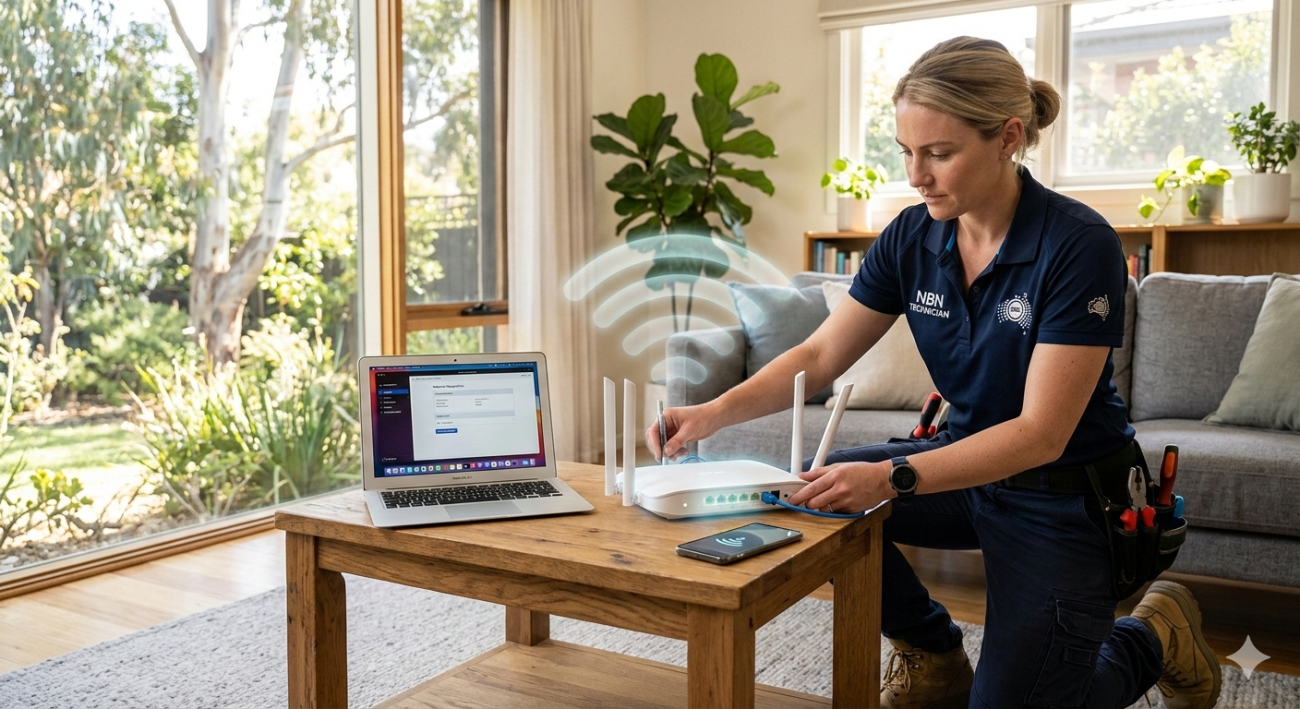
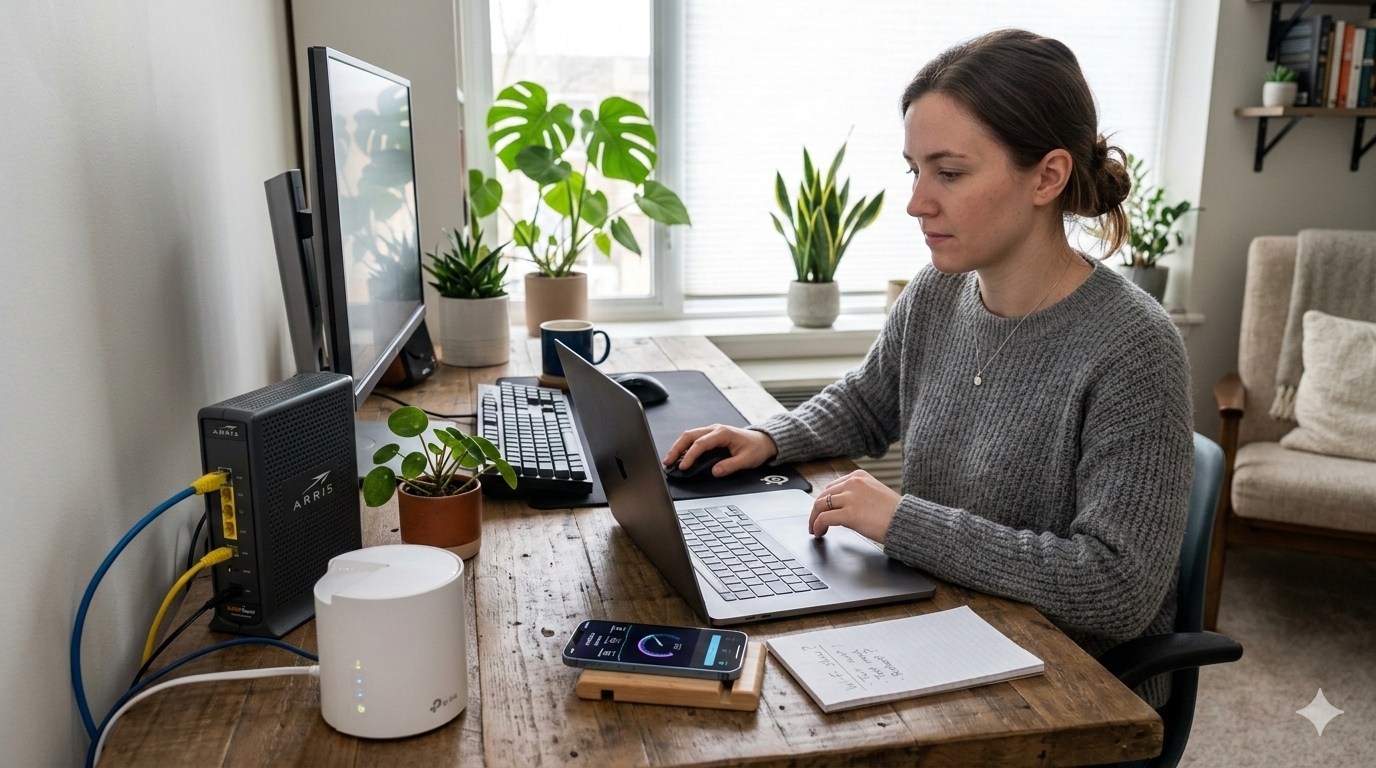
Slow internet, dropped connections, and weak signals are some of the most common Wi-Fi problems people face with home and office networks. This guide explains practical steps you can take to identify and fix these issues before calling a technician. From checking router placement to testing network devices, simple troubleshooting can restore a stable connection quickly. However, when problems persist, professional Wi-Fi Troubleshooting Services Caloundra can diagnose deeper network faults and improve performance. This article explains common causes of Wi-Fi issues, step-by-step troubleshooting tips, and when to seek expert help from local specialists providing reliable internet solutions across the Sunshine Coast.
Why Wi-Fi Problems Happen
Wireless internet depends on several components working together. Your modem, router, connected devices, and the physical layout of your home all influence network performance. When one part struggles, your connection may slow down or drop.
Common causes of Wi-Fi issues include:
- Poor router placement
- Too many connected devices
- Outdated firmware
- Network interference from walls or electronics
- Faulty cables or hardware
- Internet service interruptions
Many users immediately assume their internet provider is at fault. In reality, most common Wi-Fi problems start inside the home network. Understanding these factors helps you diagnose the problem faster.
If the issue continues after basic checks, professional Wi-Fi Troubleshooting Services Caloundra can identify deeper network faults and improve connection stability.
1. Restart Your Modem and Router
Restarting networking equipment is often the simplest fix.
When routers run continuously for long periods, temporary software glitches can affect performance. A reboot clears cached memory and reconnects your device to your internet provider.
Steps to restart your network:
- Turn off your modem and router
- Wait 30–60 seconds
- Turn the modem back on first
- Wait until the connection lights stabilise
- Turn on the router
Many connectivity issues resolve after this quick reset. If problems return frequently, there may be deeper network configuration problems.
2. Check Router Placement
Router location has a major impact on signal strength.
A router placed in a corner, behind furniture, or inside cabinets will struggle to broadcast a strong signal. Walls, metal surfaces, and appliances can block wireless signals.
Better router placement tips:
- Place the router in a central area of the home
- Keep it elevated on a shelf or table
- Avoid placing it near microwaves or cordless phones
- Keep distance from thick concrete walls
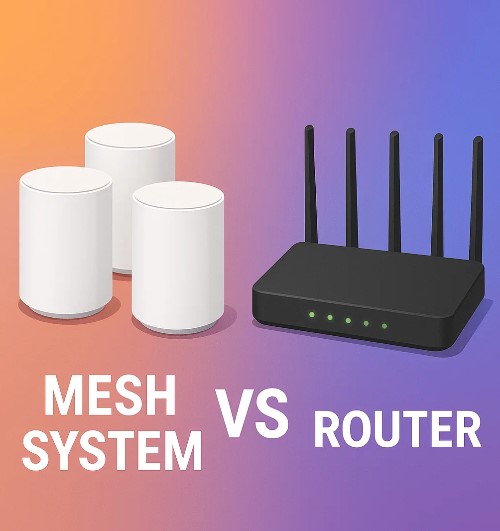
Homes with multiple floors or large layouts often experience dead zones. In these cases, a mesh system or signal booster can improve coverage. Many households solve coverage problems with Wi-Fi Installation Caloundra that includes better router placement and upgraded hardware.
3. Check for Network Interference
Wireless signals operate on specific frequency channels. Nearby networks, Bluetooth devices, and electronics can cause interference.
In dense neighbourhoods or apartment buildings, dozens of routers may compete for the same channels.
Signs of interference include:
- Connection drops at specific times
- Slower speeds in certain rooms
- Devices disconnecting randomly
Modern routers allow you to switch channels manually or automatically. Adjusting these settings often improves signal quality.
4. Update Router Firmware
Firmware updates improve router security, stability, and performance. However, many people never check whether their router software is up to date.
Outdated firmware can cause:
- Connection instability
- Security vulnerabilities
- Poor device compatibility
To update firmware:
- Log into your router’s admin panel
- Check the firmware version
- Download updates from the manufacturer
- Install the update and restart the router
If you are unsure how to access these settings, technicians offering Wi-Fi Troubleshooting Services Caloundra can update firmware and configure network settings properly.
5. Reduce Network Congestion
The number of devices connected to your network can affect performance.
Smart TVs, phones, tablets, gaming consoles, security cameras, and smart home devices all compete for bandwidth. When too many devices use the network simultaneously, speeds drop.
Ways to reduce congestion include:
- Disconnect unused devices
- Schedule large downloads during off-peak hours
- Upgrade to a higher speed internet plan
- Use a dual-band or tri-band router
Homes with many connected devices often benefit from professional Internet Solutions Services Sunshine Coast, which may include upgraded routers or mesh networks designed for higher traffic.
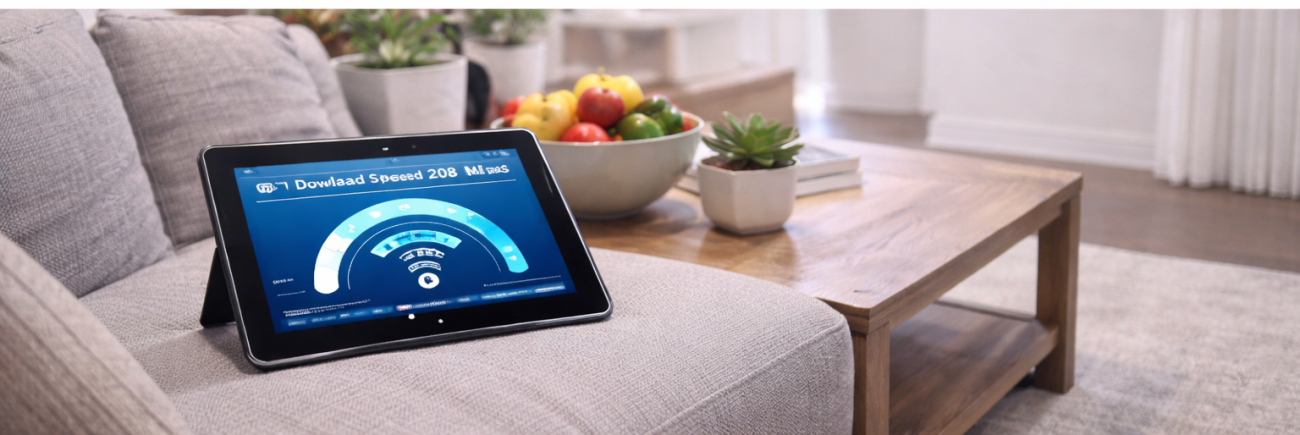
6. Test Internet Speed
Running a speed test helps determine whether the issue comes from your Wi-Fi or your internet provider.
Test speeds in two ways:
- Wi-Fi test – run the test from your phone or laptop
- Ethernet test – connect directly to the modem with a cable
If the wired connection is fast but Wi-Fi is slow, the problem likely exists within the wireless network rather than the internet service itself.
Persistent slow speeds often indicate weak signal coverage, outdated equipment, or poor router performance. If the issue continues after testing, you may want to explore professional Wi-Fi troubleshooting support designed for homes and small businesses to identify deeper network problems and improve connection stability.
7. Consider a Mesh Network or Signal Booster
Large homes, multi-storey houses, and offices often struggle with uneven coverage.
A single router cannot always cover every room effectively. Dead zones appear where the signal weakens.
Two popular solutions include:
Mesh Networks
A mesh system uses multiple nodes placed around the house. These devices communicate with each other and spread the signal evenly.
Signal Boosters or Range Extenders
These devices capture the router’s signal and rebroadcast it to distant areas.
Both solutions are commonly included in professional Internet Solutions Services Sunshine Coast installations for improved coverage.
8. Check Cables and Hardware
Physical connections still matter even in wireless networks.
Loose or damaged cables between the modem and router can interrupt internet access. Faulty hardware may also cause intermittent issues.
Things to inspect:
- Ethernet cables
- Power adapters
- Router overheating
- Modem connection to wall outlet
Replacing worn cables often restores a stable connection.
When to Call a Professional
Basic troubleshooting resolves many common Wi-Fi problems. However, some issues require deeper network diagnostics.
You may need expert assistance if:
- Wi-Fi drops frequently
- Speeds remain slow after testing
- Coverage is poor in multiple rooms
- Router settings appear confusing
- Network equipment is outdated
Technicians providing Wi-Fi Troubleshooting Services Caloundra can analyse signal strength, network traffic, router configuration, and hardware performance to find the exact cause.
The team at Brocky’s TV & Internet helps homes and small businesses with Wi-Fi Installation Caloundra , mesh network setup, signal boosters, and internet repair across the Sunshine Coast. You can also connect with them through their community updates on Facebook.
Reliable internet has become essential for work, streaming, online learning, and smart home systems. With proper troubleshooting and expert support from Brocky’s TV & Internet, your network can operate smoothly and deliver consistent speeds throughout your property.
FAQs
1. What causes slow Wi-Fi at home?
Slow Wi-Fi often results from poor router placement, network congestion, outdated hardware, or interference from nearby devices and networks.
2. When should I use Wi-Fi Troubleshooting Services Caloundra?
You should consider professional help if your connection drops frequently, coverage is weak in several rooms, or troubleshooting steps do not fix the problem.
3. How often should I restart my router?
Restarting your router once every few weeks can help clear temporary glitches and maintain stable performance.
4. Do mesh networks improve Wi-Fi coverage?
Yes. Mesh networks use multiple nodes to spread the signal evenly across large homes or offices, reducing dead zones and improving reliability.
5. Can Wi-Fi installation improve internet speed?
Professional Wi-Fi Installation Caloundra can improve speeds by placing routers correctly, upgrading hardware, and configuring the network for better signal distribution.