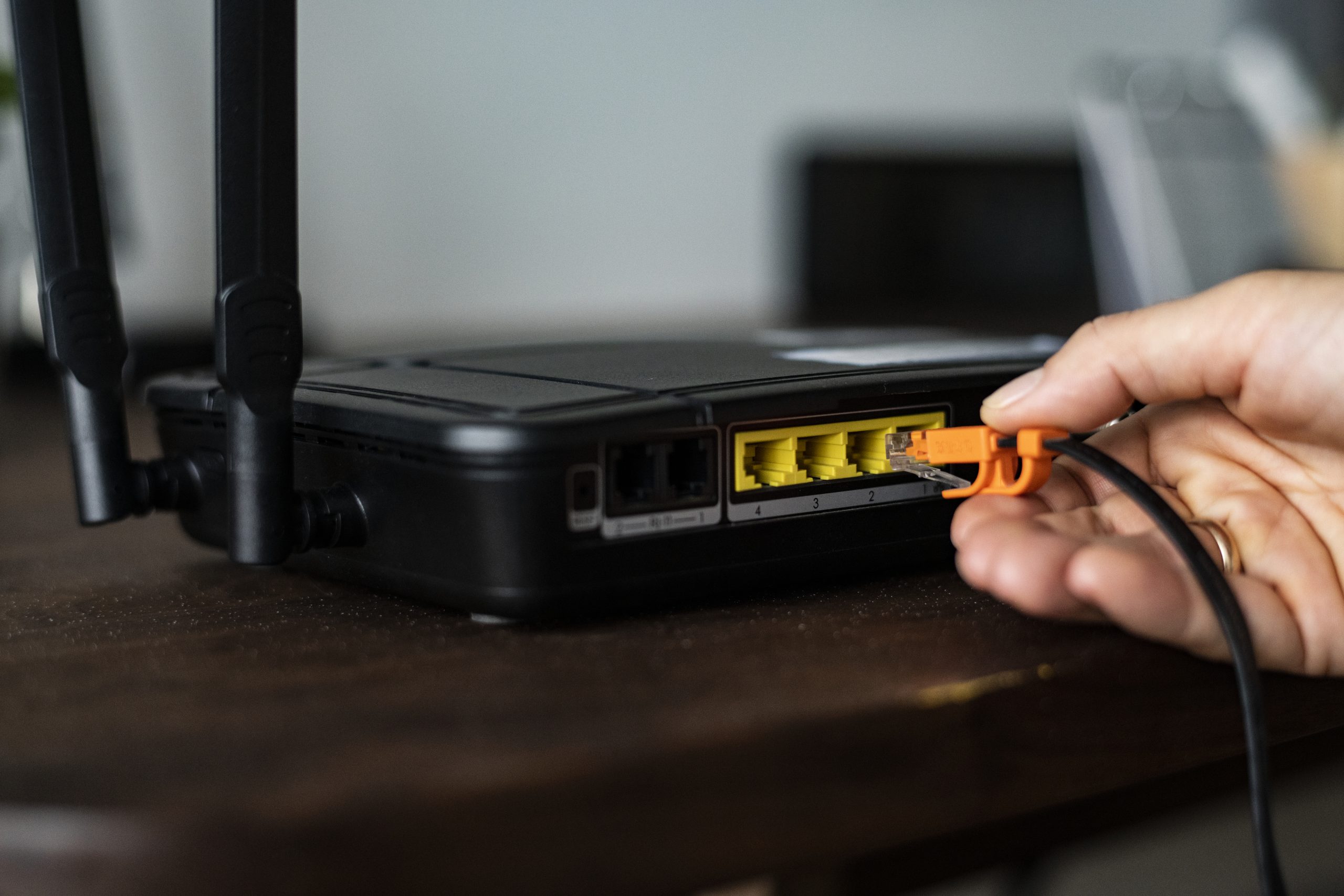
Knowing the signs that it’s time to replace your old modem or router can prevent slow speeds, frequent Wi-Fi dropouts, and unstable connections at home. Many households blame their internet provider for performance issues when the real reason is an outdated or failing modem or router. This guide explains the most common warning signs, how ageing hardware affects performance, and what to check before replacing your device. Whether your home experiences weak WiFi coverage, buffering, or inconsistent speeds, these insights help you determine when your equipment needs an upgrade for smoother online performance.
Why Modems and Routers Slow Down Over Time
Modem or router don’t last forever. Heat, dust, outdated technology, firmware limitations, and general wear gradually reduce their performance. Internet usage has also increased over the years—smart devices, streaming platforms, security cameras, and gaming systems all demand more from your network.
Older devices simply cannot keep up with:
- Higher bandwidth requirements.
- More connected devices.
- Advanced WiFi standards.
- Faster NBN plans.
Before assuming your ISP is the problem, it’s important to understand how ageing routers and modems behave.
Sign #1: Slow Internet Speeds Across All Devices
If your connection is slow everywhere—even with strong signal bars—your router may be the cause. Older routers cannot handle modern speeds or newer WiFi standards.
Symptoms include:
- Long loading times.
- Slow downloads.
- Lag during video calls.
- Streaming that buffers often.
If you’ve already reset your router and speeds remain slow, hardware limitations may be the issue.
For advanced troubleshooting or device assessment, refer to Wi-Fi Repair services.
Sign #2: WiFi Keeps Dropping Out Suddenly
If your WiFi disconnects randomly, especially when multiple devices are active, it’s a sign that the router is failing or overheating.
Common causes:
- Overworked processors.
- Ageing internal components.
- Firmware incompatibility.
- Voltage fluctuations.
- Faulty antennas.
Over time, routers lose their ability to maintain stable connections—especially under heavy load.
Sign #3: Weak Signal or Dead Zones Appearing
If you notice that parts of your home have weaker WiFi than before, your router’s antennas or radio components may be deteriorating.
Weak signals appear when:
- Antennas loosen internally
- Radio chips degrade
- Heat damages internal circuits
- The router cannot penetrate modern wall materials.
Upgrading location, layout, or equipment during renovations can help. To understand more about professional service history and customer trust, you can check the About Us page.
Sign #4: Router Gets Too Hot
Routers naturally produce heat, but excessive temperatures signal deeper problems. Heat affects speed, stability, and long-term performance.
Warning signs:
- The router feels hot to the touch.
- Frequent connection drops.
- Sudden reboots.
- The lights are flickering abnormally.
Heat often means internal parts are wearing out.
External references, such as the TP-Link overheating troubleshooting, provide more insights into temperature-related issues.
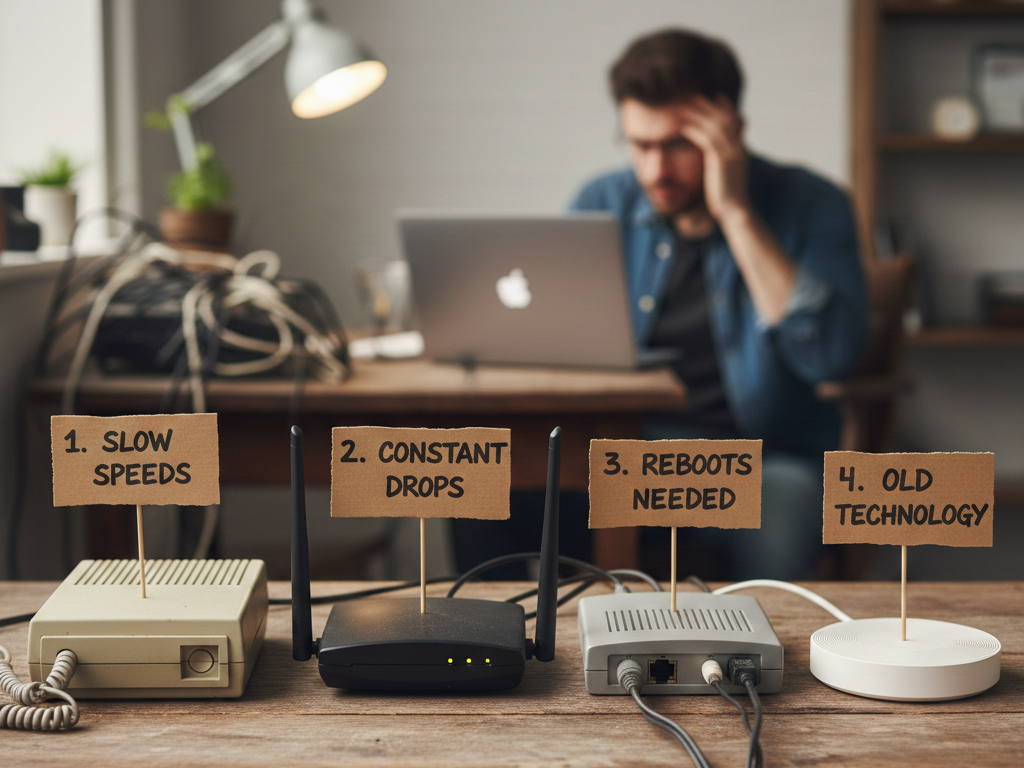
Sign #5: Your Router Is More Than 4–5 Years Old
WiFi technology evolves quickly. A router older than five years may not support:
- WiFi 5 or WiFi 6.
- Faster NBN speeds.
- Dual-band or tri-band.
- Strong signal coverage.
- Smart-home connectivity.
Old routers also lack security updates, leaving your network vulnerable.
Sign #6: New Devices Are Struggling to Connect
If recently purchased phones, tablets, smart TVs, or smart home equipment fail to connect smoothly, your router may be using outdated protocols.
Compatibility problems include:
- Devices disconnecting during setup.
- Smart devices dropping offline.
- Weak 5 GHz performance.
Modern devices expect modern WiFi standards.
Sign #7: Router Requires Constant Rebooting
Restarting your modem or router once in a while is normal—but rebooting it daily is not.
If rebooting temporarily fixes your internet, you may be experiencing:
- Memory leaks.
- Hardware fatigue.
- Overheating.
- Firmware errors.
These issues suggest it’s time to upgrade.
External tech guides, such as CNET WiFi troubleshooting tips, explain these patterns clearly
Sign #8: Ethernet Ports or Cables Stop Working
If wired connections fail, it indicates physical damage or port degradation.
Symptoms:
- No light indicators on ports.
- LAN devices are disconnecting.
- Slow speeds despite cable changes.
Faulty ports are common in old modems.
Sign #9: Security Risks and Missing Firmware Updates
Older modems often stop receiving firmware updates, which exposes your home network to cyber risks.
Lack of updates leads to:
- Vulnerabilities.
- Weak security protocols.
- Outdated encryption.
Replacing your modem improves both speed and safety.
Sign #10: ISP Support Recommends a Replacement
If your internet provider runs remote diagnostics and suggests replacing your modem or router, it’s often because:
- Hardware no longer supports new speeds.
- Device is no longer compatible with updated systems.
- Signal quality is too poor to repair.
Ignoring this advice will likely lead to more issues over time.
Before Replacing Your Modem or Router: Quick Checks
Before buying a new device, try the following:
- Restart your modem & router.
- Update firmware.
- Test another power outlet.
- Replace old cables.
- Try moving the router to a new location.
- Reduce interference from appliances.
If issues remain, your hardware may be failing.
Final Thoughts & Professional Help
Modem or router age just like any other device. Slow speeds, connection dropouts, overheating, weak signals, limited coverage, and compatibility problems all indicate it may be time for a replacement. Upgrading ensures stronger internet performance, better security, and smoother streaming, gaming, and work-from-home experiences.
If your network still feels unstable or you’re unsure whether your hardware needs replacing, reach out to Brocky Internet for diagnosis, repairs, and expert WiFi support.
Frequently Asked Questions
1. How long does a modem or router usually last?
Most routers last 4–5 years before performance declines.
2. Why is my WiFi slower even after upgrading my internet plan?
Your old router may not support the new speeds.
3. Does overheating mean my router is failing?
Yes, excessive heat can damage internal components and reduce stability.
4. Should I buy a modem and router combo or separate units?
Separate units offer better performance, but combos are easier for beginners.
5. Can a technician check if my modem is faulty?
Yes, a professional can test its signal strength, ports, and overall health.