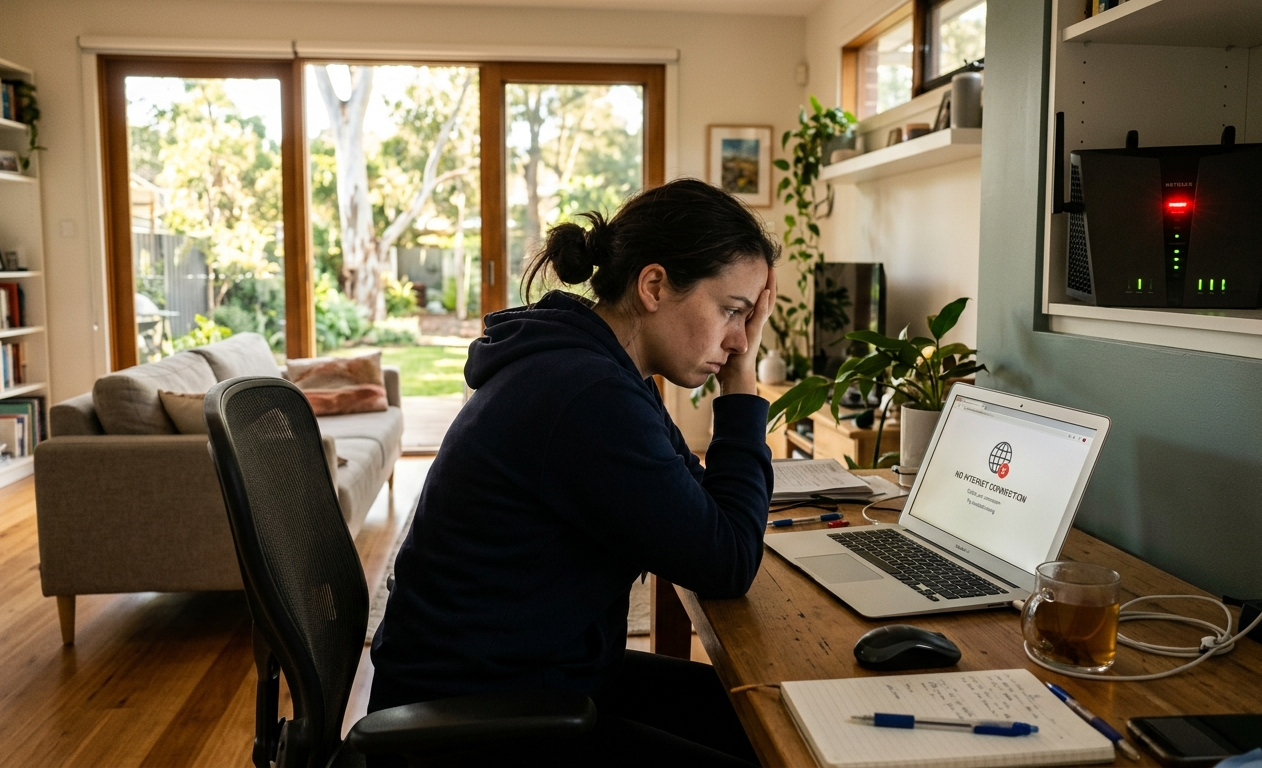
There are few things more frustrating than sitting down to work, stream, or game only to find your WiFi not working. No connection, intermittent dropouts, or a signal that shows full bars but delivers nothing these are daily realities for more Sunshine Coast households than you’d expect, and the cause is rarely as straightforward as a simple router restart.
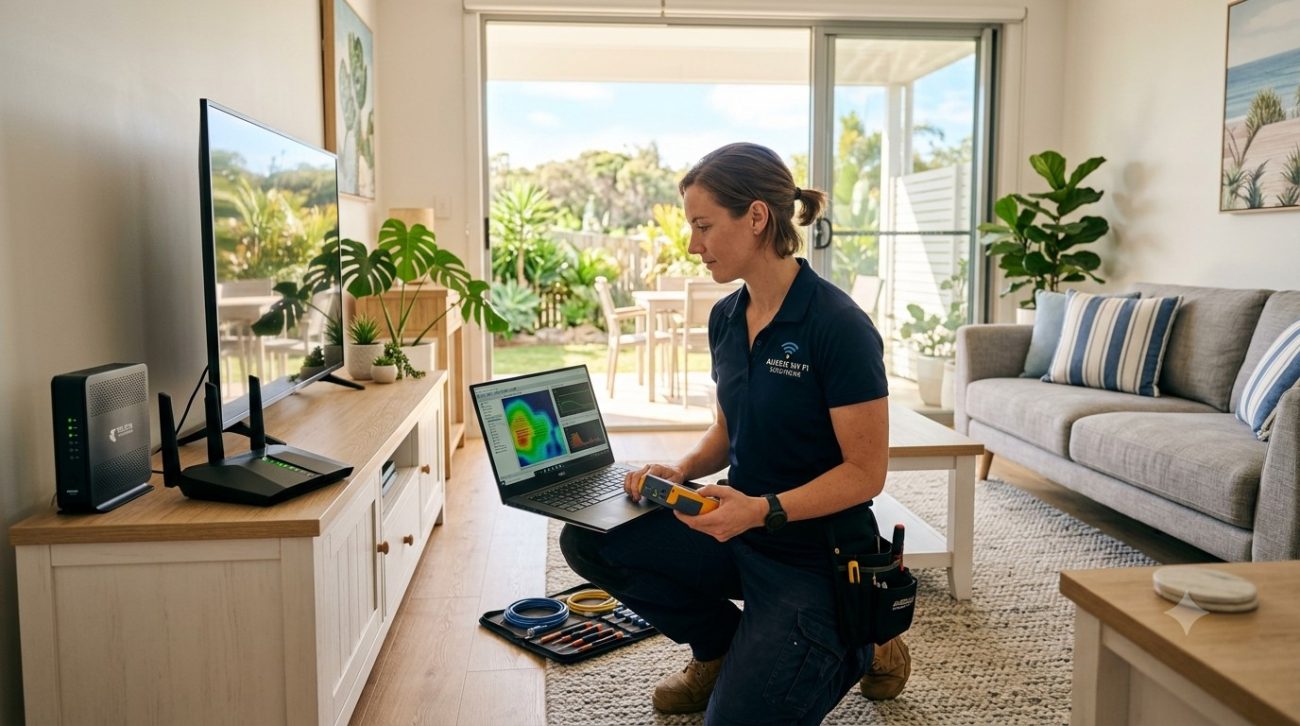
At Brocky’s Internet, we help Sunshine Coast households diagnose and fix WiFi not working situations every week. Some are resolved with a quick settings change. Others need professional assessment to get to the root cause. Here’s exactly how to work through the most common causes in the right order.
Confirm Whether the Problem Is WiFi or the Internet Connection Itself
Before troubleshooting your router or WiFi, it’s worth confirming which part of the chain has failed. WiFi not working and your internet connection being down are two different problems with different solutions.
How to tell the difference:
- Connect a device directly to your modem via Ethernet cable and test whether the internet works
- If the wired connection works but WiFi doesn’t, the problem is in your router or wireless network
- If the wired connection also fails, the problem is with your NBN connection or modem, not your WiFi
This single check prevents you from spending time troubleshooting the wrong part of your network.
The Most Common Causes of WiFi Not Working and How to Fix Each One
1. The Router Needs a Restart
It sounds obvious, but a proper router restart resolves a significant proportion of WiFi not working situations. Routers accumulate memory usage over time, and a full power cycle clears this and re-establishes all connections cleanly.
How to do it properly:
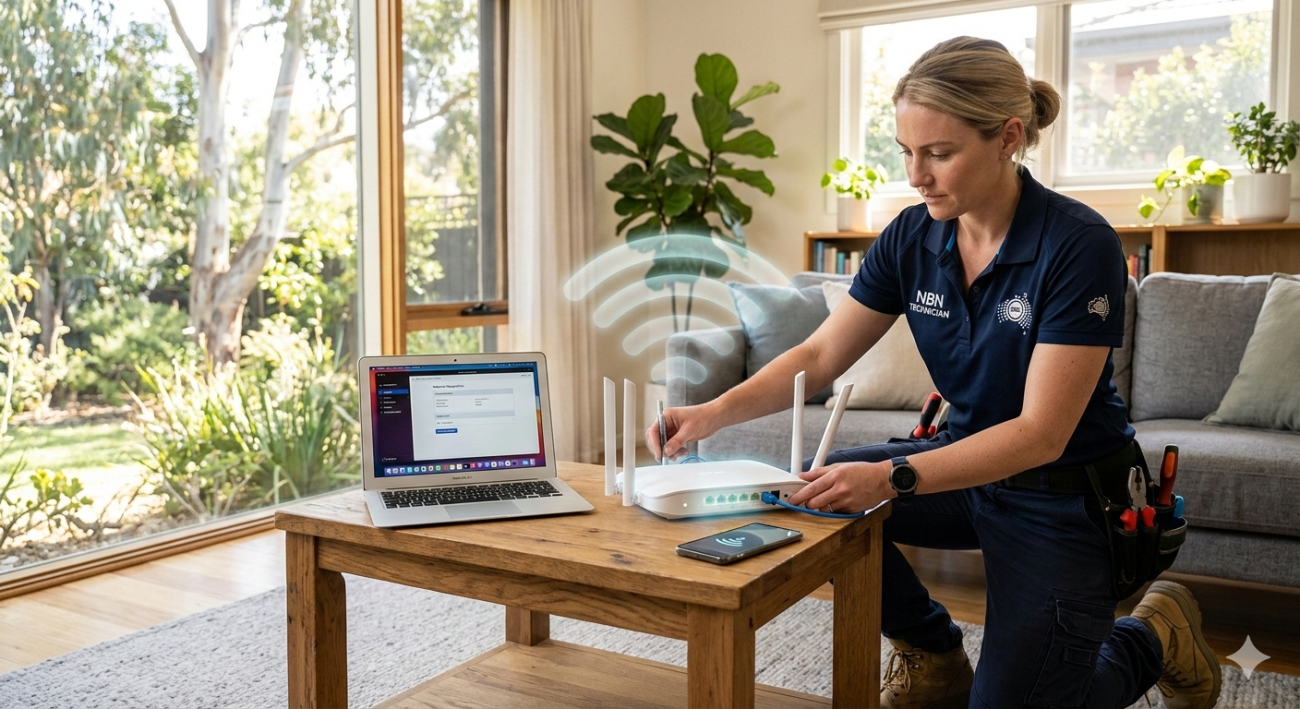
- Unplug the router from the wall don’t just press the power button
- Wait a full 60 seconds before plugging it back in
- Allow 2 to 3 minutes for the router to fully restart and re-establish its connection before testing
- If you have a separate modem and router, restart the modem first, wait 60 seconds, then restart the router
If the WiFi not working issue resolves after a restart but returns within hours or days, the router has an underlying fault that restarting is masking rather than fixing.
2. The Device Rather Than the Network Is the Problem
A WiFi not working situation that only affects one device while others connect normally points to the device rather than the network.
What to try on the affected device:
- Turn WiFi off on the device, wait 10 seconds, and turn it back on
- Forget the network on the device and reconnect from scratch with the current password
- Restart the device completely, not just the screen
- Check whether the device has a software update pending that might be affecting network performance
- On a laptop, disable and re-enable the network adapter through device settings
If the same device has WiFi not working issues on multiple networks, the device’s wireless adapter may need attention.
3. The WiFi Password or Network Settings Have Changed
If your router was recently reset, updated, or reconfigured by your ISP, the network name (SSID) or password may have changed without all devices being updated.
What to check:
- Confirm the network name your device is trying to connect to is still the correct one
- Check whether a firmware update has reset your router to default settings
- Log into your router’s admin panel to confirm the current WiFi password and network name
- Update the saved password on all affected devices
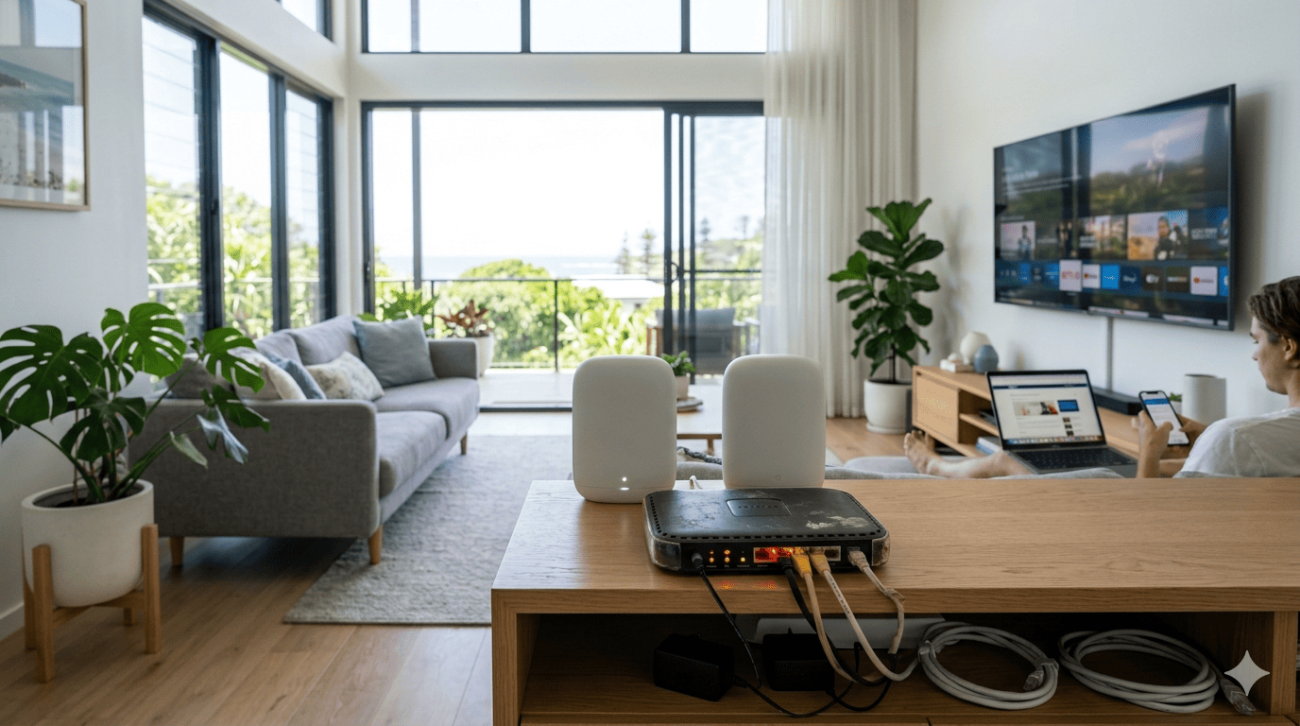
4. The Router Is Overloaded or Overheating
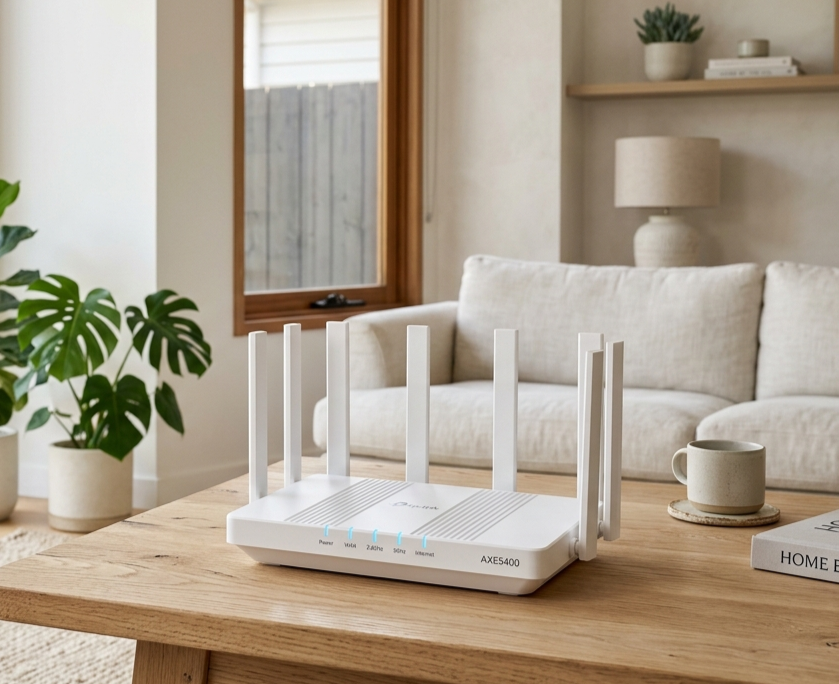
A WiFi not working situation that develops gradually throughout the day, or that gets worse during peak evening hours, often points to the router being overloaded with device connections or overheating from continuous operation.
Signs this is your issue:
- The router feels unusually hot to the touch
- WiFi performance degrades progressively throughout the day and improves after a restart
- Performance is noticeably worse during peak household usage hours
What to do:
- Ensure the router has adequate ventilation on all sides and isn’t in an enclosed space
- Check how many devices are actively connected and whether any are using unusually high bandwidth
- Enable Quality of Service (QoS) settings to prioritise critical connections
- Consider whether the router hardware is undersized for your household’s current device load
5. WiFi Channel Congestion From Neighbouring Networks
In areas with higher housing density across the Sunshine Coast, multiple routers operating on the same WiFi channel compete for the same radio frequency. This can cause a WiFi not working situation where the connection is technically present but too congested to be usable.
What to do:
- Download a free WiFi analyser app on your phone to see which channels neighbouring networks are using
- Log into your router’s admin panel and manually select a less congested channel
- For 2.4 GHz, channels 1, 6, and 11 are the non-overlapping options
- Switch high-demand devices to the 5 GHz band where possible, as it has more available channels and less congestion
As covered in how WiFi channel interference affects wireless network performance, multiple networks sharing the same channel significantly reduce effective throughput for all devices using that frequency, making channel selection a meaningful fix in dense suburban environments.
6. The Router Firmware Needs Updating
Outdated router firmware is a frequently overlooked cause of WiFi not working situations. Manufacturers regularly release updates that fix bugs, improve stability, and address security vulnerabilities that can affect connectivity.
What to do:
- Log into your router’s admin panel and navigate to the firmware or software update section
- Install any available updates and allow the router to restart
- Enable automatic updates if your router supports them
7. Physical Damage or Hardware Failure
If none of the above steps resolve the WiFi not working situation, the router itself may have developed a hardware fault. Routers have a finite service life, and components inside them degrade over time, particularly in the Sunshine Coast’s warm, humid coastal environment.
Signs of hardware failure:
- The router’s indicator lights show an abnormal pattern that doesn’t resolve after a restart
- The router works briefly after a restart but fails again within minutes
- The WiFi radio appears to be broadcasting but devices can’t connect or maintain a stable connection
- The router is several years old and has never been replaced
For Wi-Fi repairing services on the Sunshine Coast, WiFi repair and installation services covers everything from hardware fault diagnosis to full network upgrades, including supply and installation of correctly specified replacement hardware.
For households in Caloundra specifically needing local Wi-Fi repairing services on the Sunshine Coast, WiFi installation and repair in Caloundra is handled by the same experienced local team with the same professional approach.
For a broader look at everything that affects WiFi signal performance beyond outright failures, improving WiFi signal at home covers the full range of performance factors worth addressing alongside any repair work.
According to NBN Co’s home network guidance for Australian households, the internal home network is one of the most significant factors affecting the internet performance Australians experience, meaning router quality, placement, and configuration all have a direct impact on whether your WiFi works reliably.
When WiFi Not Working Needs Professional Help
Working through the steps above resolves most common WiFi not working situations. But these are clear signs professional Wi-Fi repairing services on the Sunshine Coast will deliver better results:
- The fault persists after a full router restart, firmware update, and device reconnection
- Multiple devices across the household are affected simultaneously
- The router indicator lights show an abnormal pattern that doesn’t resolve
- Your internet works on a wired connection but WiFi won’t function at all
- The problem recurs regularly and has become a pattern rather than an isolated incident
Why Sunshine Coast Locals Trust Brocky’s Internet
We’re a local service, not a call centre. When you contact Brocky’s Internet, an experienced local technician talks to you directly, assesses your specific setup, and gives you honest advice about what your network actually needs. Our Wi-Fi repairing services on the Sunshine Coast cover the full range of faults from simple configuration issues to complete hardware replacements.
Here’s what you get with every service at Brocky’s Internet:
- Experienced local technicians across all major router and modem brands
- Honest advice, we’ll tell you if a free settings change is all you need
- Fast response times across the Sunshine Coast
- Transparent, upfront pricing with no hidden costs
- A personal walkthrough so your household understands the fix
We’ll let the locals we’ve helped do the talking.
Get Your WiFi Working Again Today
Don’t put up with a WiFi not working situation that disrupts your household. Whether it’s a quick configuration fix or a full network upgrade, the team at Brocky’s Internet is ready to help.
From fixing WiFi not working issues to full WiFi installation and Wi-Fi repairing services across the Sunshine Coast, you can find everything we do at Brocky’s Internet.
Contact Brocky’s Internet today and we’ll have your network assessed and working reliably as soon as possible.
FAQs
1. Why is my WiFi not working even though the router looks fine?
A router that appears normal can still have firmware issues, channel congestion, or an overloaded connection table. Work through the steps above systematically before assuming a hardware fault.
2. Why does my WiFi not work on one device but work on others?
Device-specific WiFi issues are almost always caused by the device’s saved network credentials, wireless adapter settings, or a pending software update rather than the network itself.
3. Can a router that’s too hot cause WiFi to stop working?
Yes. Overheating causes routers to throttle performance and in some cases shut down the WiFi radio entirely as a protective measure. Ensure adequate ventilation around your router at all times.
4. How do I know if my router needs replacing?
If the router is more than four to five years old, no longer receives firmware updates, and the WiFi not working issues recur regularly despite troubleshooting, replacement is usually the most cost-effective solution.
5. Does Brocky’s Internet fix WiFi not working issues on the Sunshine Coast?
Yes. We provide professional Wi-Fi repairing services across the Sunshine Coast including Caloundra, Maroochydore, Nambour, Noosa, and surrounding areas.