
This guide explains how homeowners and small businesses can fix common internet and Wi-Fi problems using a simple checklist. If you rely on a Home Internet Repair Service Sunshine Coast, this article shows what to check first, how to spot weak coverage, and when expert help saves time. You will learn practical steps for dropouts, slow speeds, and dead zones, plus tips for better router placement and device load. The goal is a steady, usable internet for work, streaming, and daily tasks. The steps also match how local Wi-Fi Troubleshooting Services and a Wi-Fi Expert Home Service approach real faults.
Easy Wi-Fi Troubleshooting Checklist for Homes and Small Businesses

Slow internet, patchy coverage, and random dropouts cause real stress at home and at work. Video calls freeze, streaming buffers, and cloud tools crawl. Many people assume the provider is at fault, yet many issues start inside the building. A clear checklist helps you spot the cause and fix it fast.
This article shares a practical method used by Wi-Fi Repairing Services and local technicians. It fits homes, shops, and small offices. The steps below keep things simple and focus on results.
Step 1: Check whether the fault is Wi-Fi or the internet line
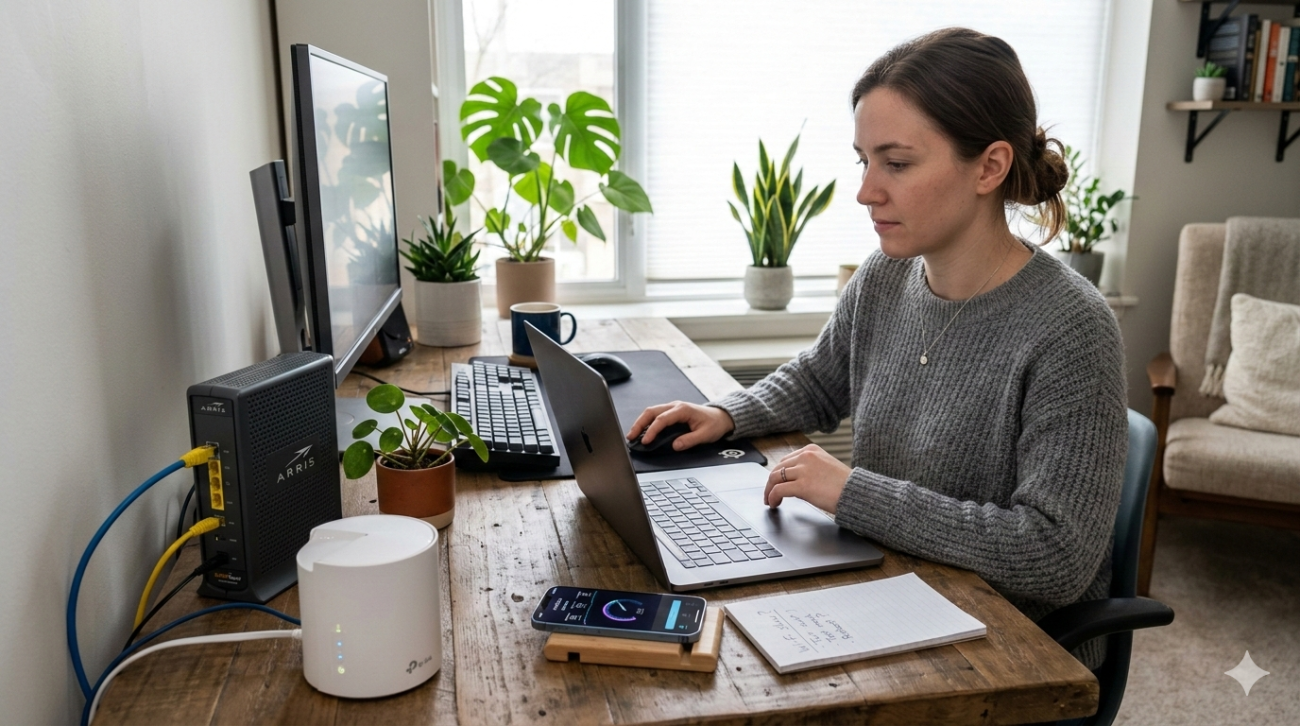
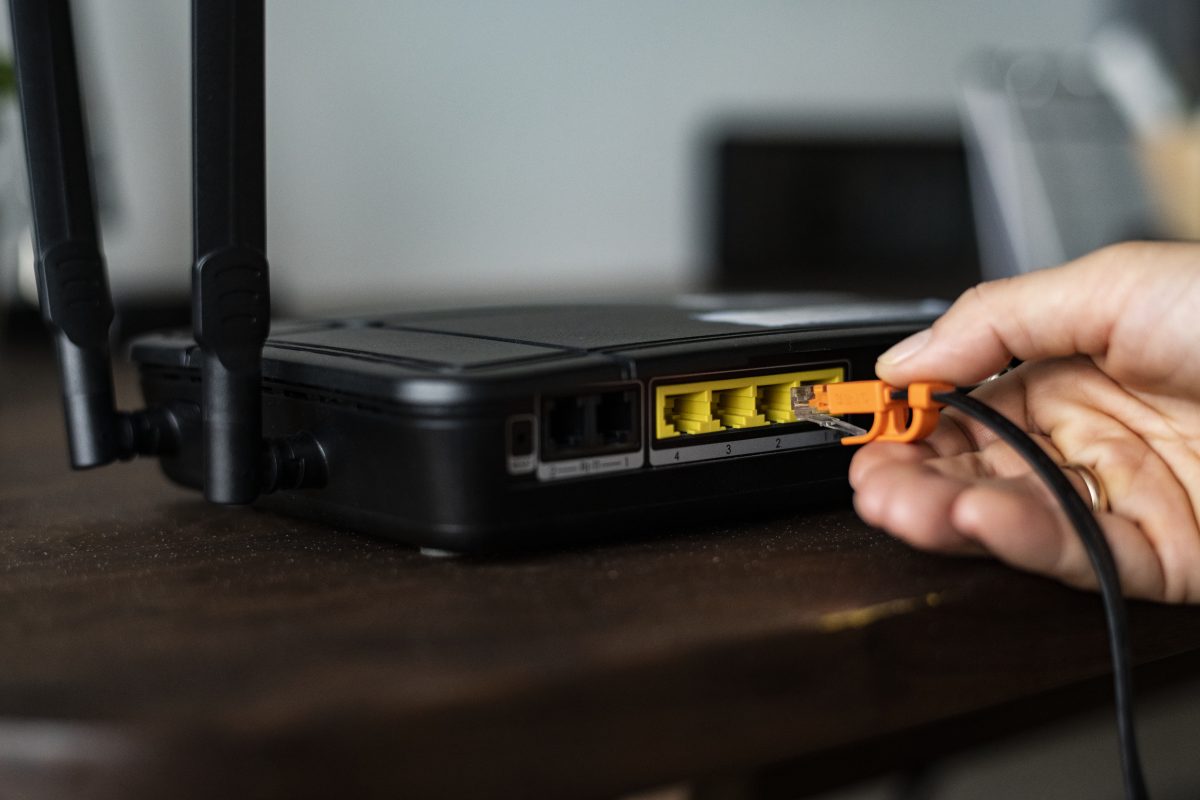
Start with a quick test. Plug a laptop into the modem with a cable and run a speed test. If the wired speed looks fine but Wi-Fi is slow, the fault lies in your wireless setup. If both are slow, the line, modem, or plan could be the reason. This saves guesswork and points you to the right fix.
Step 2: Power cycle the gear
Turn off the modem and router, unplug both, wait one minute, then power up the modem first. When it finishes, power up the router. This clears small software faults that build up over time. Many call-outs for Wi-Fi Troubleshooting Services end right here.
Step 3: Place the router where it can work
Poor placement causes a weak signal and dead spots. Put the router in a central, raised spot, away from thick walls, metal shelves, and large screens. Avoid cupboards and corners. In offices, keep it close to the main work area. Better placement often beats buying new gear.
Step 4: Map weak areas and dead zones
Walk around with a phone and note where the signal drops. Upper floors, back rooms, sheds, and granny flats often struggle. If only one room has trouble, move the router or add a small access point. If several areas struggle, a mesh setup or extra access points may help. Many Wi-Fi installation services on the Sunshine Coast focus on fixing this layout problem.
Step 5: Count connected devices
Modern homes and offices stack up phones, TVs, cameras, and smart gear. Older routers slow down when too many devices share the load. Check the router list and remove anything you do not use. For busy spaces, a newer router or mesh kit spreads traffic better and suits Wi-Fi Installation Services Sunshine Coast work.
Step 6: Update software and firmware
Outdated firmware can cause dropouts, speed loss, and security gaps. Update the router and key devices. This step takes minutes and often restores stable links. It is a standard move for any Wi-Fi Expert Home Service visit.
Step 7: Look for interference
Nearby networks, microwaves, and cordless phones can clash with your signal. If you live in a dense area, switch the router to a less crowded channel or use dual-band or tri-band gear. This helps shops and offices where many networks sit close together.
Step 8: Test speeds in several rooms
Run tests near the router and in problem areas. If speeds drop far away, coverage is the issue. If speeds remain low everywhere, check the modem, cabling, or plan. If only one device is slow, that device needs to be checked.
Step 9: Check cables and hardware age
Bent or worn cables cause hidden faults. Swap any suspect leads. Feel the modem and router; heat points to stress. If the router is over five years old, it may not cope with current loads. Many Wi-Fi Repairing Services Nambour and Wi-Fi Installation Services Nambour jobs end with a simple hardware refresh that brings steady results.
Step 10: Lock down your network
Open or weak passwords let unknown users drain your bandwidth. Set a strong password and modern security mode. Check the device list for anything you do not recognise. A secure network often feels faster because traffic stays under control.
Step 11: Match the plan to your usage
Video calls, cloud backups, and streaming raise demand. If your needs grow, you may need to upgrade to a higher plan tier. Still, test the local setup first. Many Home Wi-Fi Repair Service Maroochydore, QLD call-outs fix layout or gear issues without changing the plan.
Step 12: Know when to call a technician
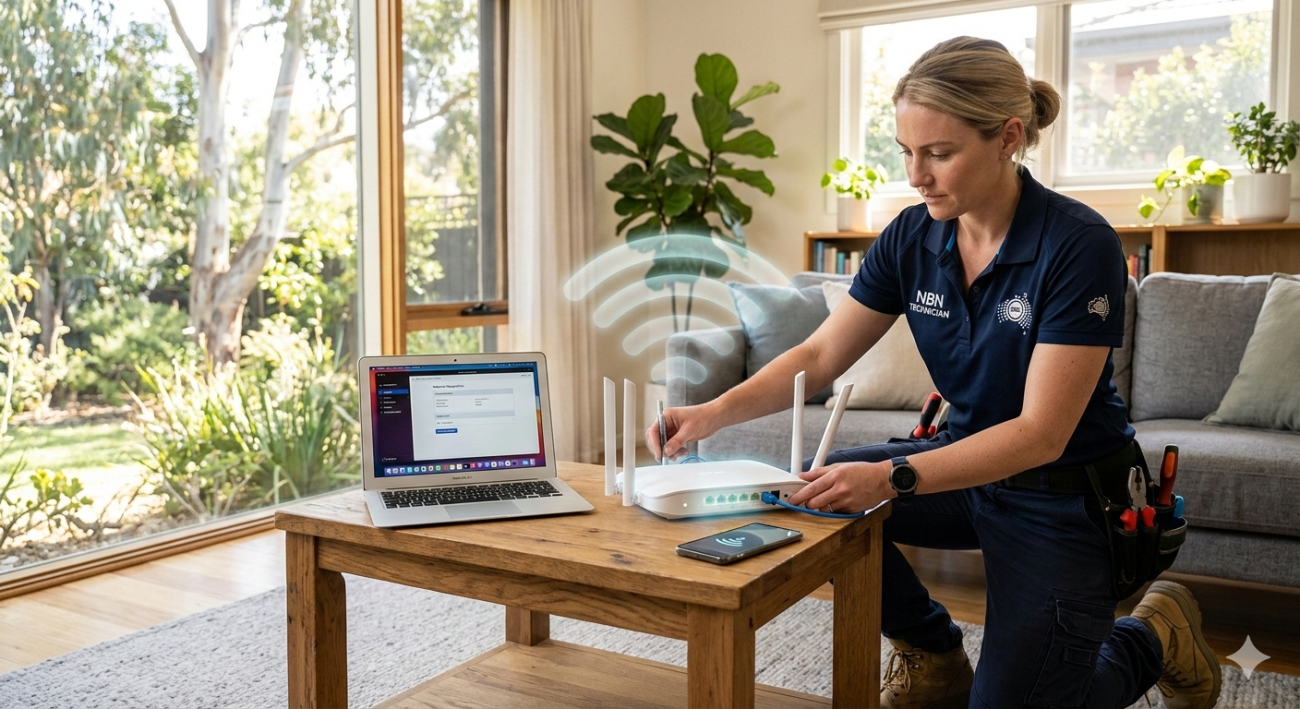
If you still experience dropouts, poor coverage, or unstable speeds after these checks, a site visit can save time. A technician can test signal paths, tune channels, and design the right layout. This is where Wi-Fi Troubleshooting Services Nambour, or a Home Internet Repair Service Sunshine Coast visit, makes sense. The goal is steady performance across all rooms, not quick patches.
A practical wrap-up
A calm, step-by-step check beats random changes. Start with the line test, reset the gear, fix placement, map weak areas, and review devices and updates. Most faults fall into one of these groups. When they do not, local help brings proper tools and experience.
For homes and small businesses across the coast, a tidy setup leads to fewer dropouts and smoother workdays. If you want hands-on help, Brocky’s Internet provides local support and tailored setups.
FAQs
1) Why does my Wi-Fi work in one room but not another?
Walls, floors, and distance weaken the signal. Router placement or extra access points often fix this.
2) How often should I restart my modem and router?
A monthly restart is fine, and any time speeds drop or dropouts start.
3) Do I need a new router to fix slow speeds?
Not always. Placement, updates, and interference checks come first. Older routers may need a swap.
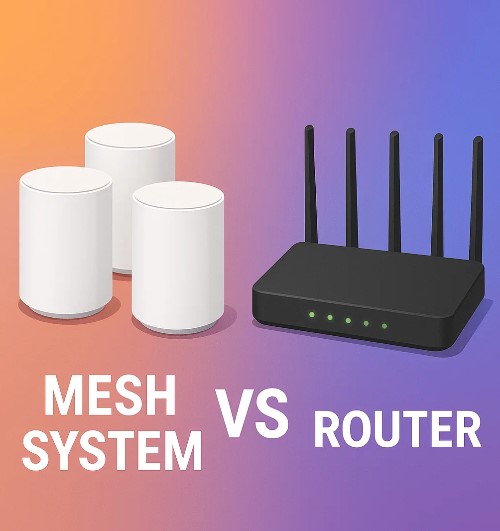
4) Is a mesh system better than a single router?
For larger or multi-level spaces, mesh spreads coverage and cuts dead zones.
5) When should I call a professional?
If dropouts or weak coverage persist after basic checks, a technician can test and tune the setup on-site.



2 thoughts on “Easy Wi-Fi Troubleshooting Checklist for Homes and Small Businesses.”
Comments are closed.