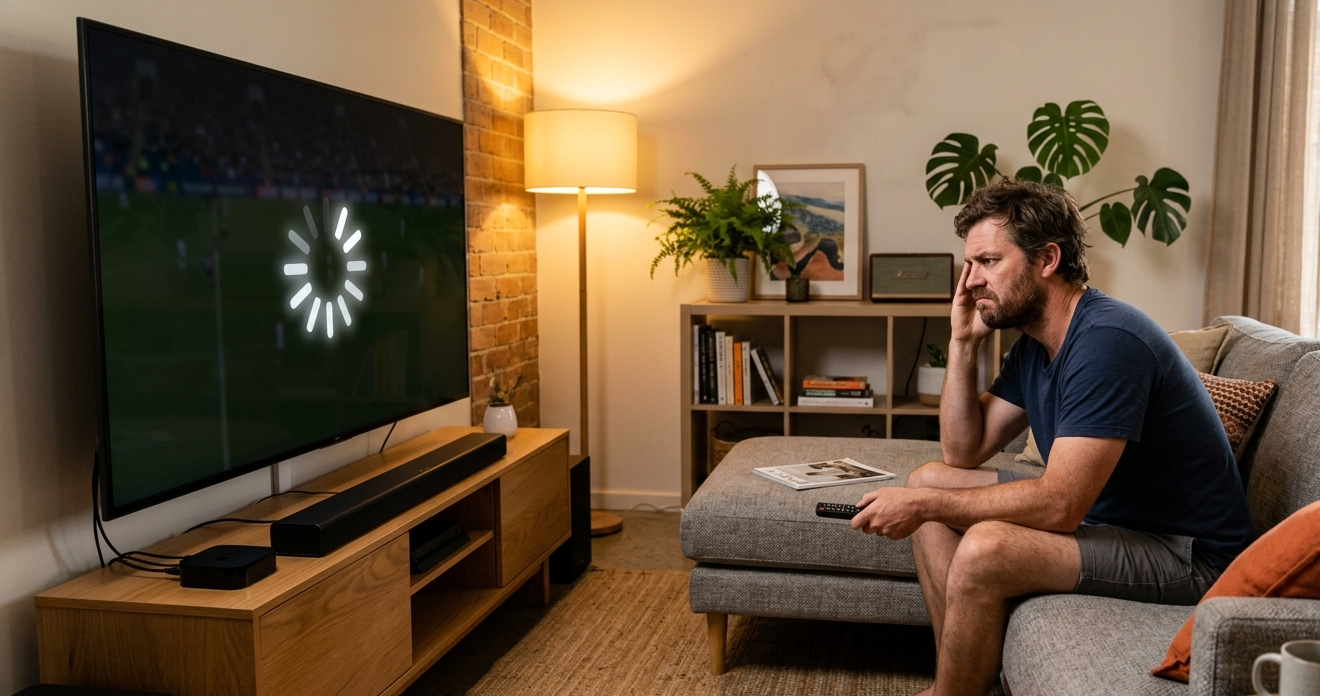
There are few things more frustrating than settling in for a movie, only to have your Smart TV keep buffering every few minutes. The spinning circle appears, the playback freezes, and by the time it recovers you’ve lost track of what was happening. If your TV keeps buffering regularly, restarting the router usually only helps temporarily, and the problem comes back the next time you sit down to watch.
At Brocky’s Internet, we help Sunshine Coast households diagnose and fix persistent buffering issues regularly. The causes are rarely what people assume, and most of them have straightforward solutions once the root cause is properly identified. Here’s what’s actually going on and how to fix it.
Why Your TV Keeps Buffering
Before jumping into fixes, it’s worth understanding what buffering actually means. When your TV keeps buffering, it means the playback device is downloading content faster than it can display it, or more accurately, slower than it needs to. The video pauses to allow enough data to load before playback can continue.
The issue can originate from several different points in the chain between the streaming service and your television. Knowing which one is causing the problem determines which fix will actually work.
The Most Common Reasons Your TV Keeps Buffering
1. Weak Wi-Fi Signal Reaching the TV
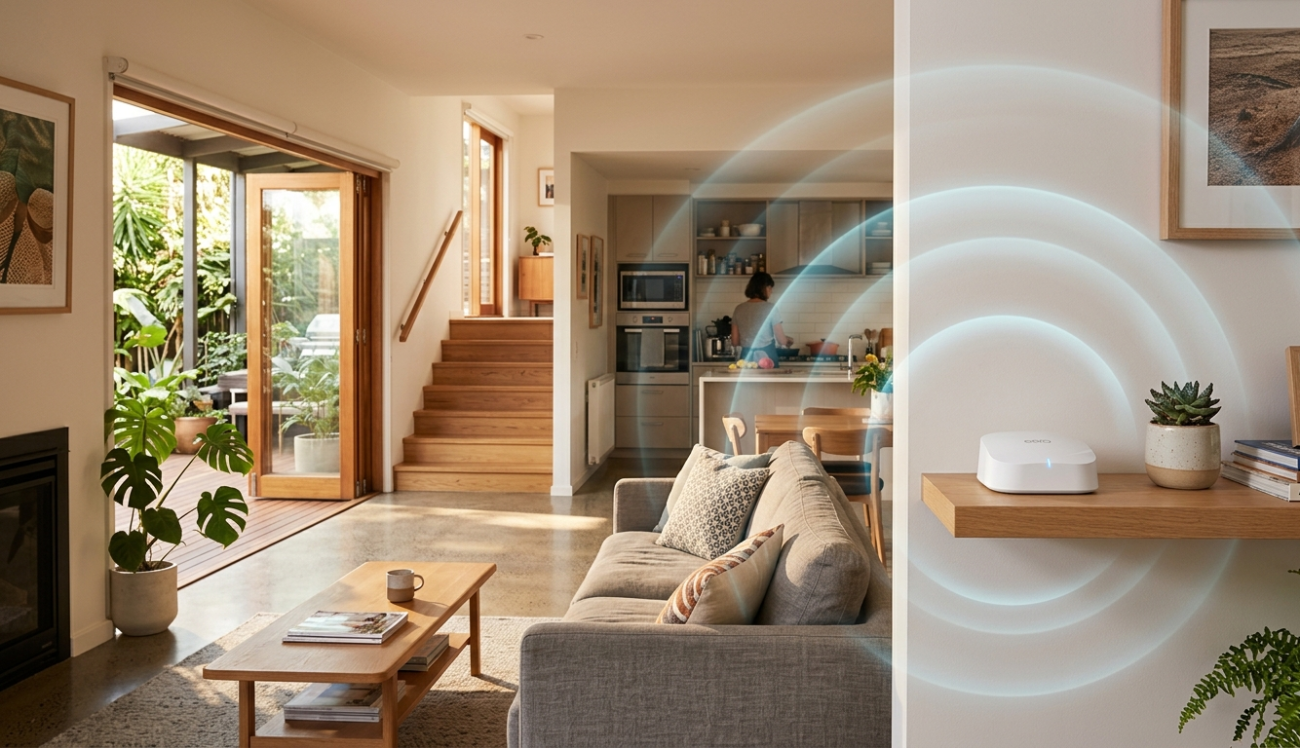
This is the most common reason a TV keeps buffering on the Sunshine Coast, and it’s almost always caused by distance, building materials, or interference between the router and the television rather than the internet connection itself.
Signs this is your issue:
- Buffering is worse when the TV is in a room further from the router
- Other devices closer to the router stream without issues
- The buffering improves temporarily when you move the router closer
What to do:
- Check the Wi-Fi signal strength indicator on your Smart TV under network settings
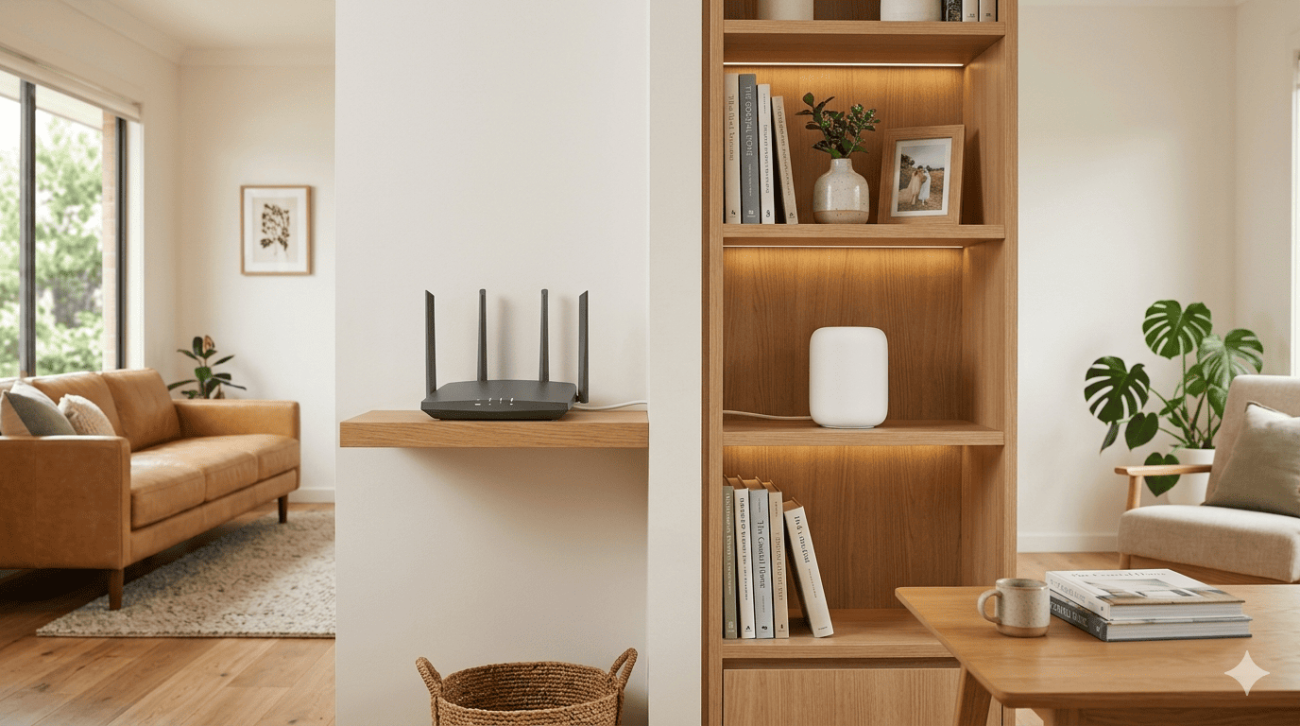
- Move the router closer to the TV if practical, or reposition it to a more central location
- Switch the TV to the 5 GHz Wi-Fi band if it’s currently on 2.4 GHz and within reasonable range of the router
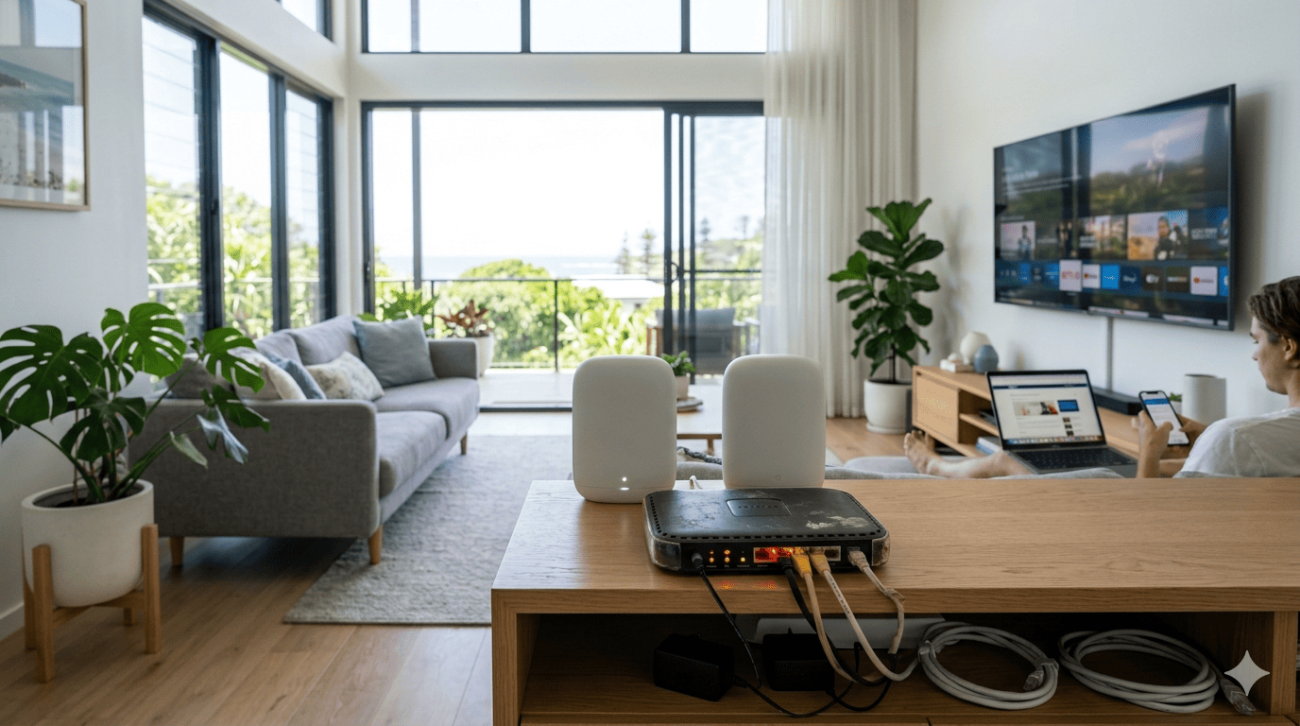
- Consider a mesh Wi-Fi system or a wired Ethernet connection for a television that buffers consistently
2. Internet Speed Not Meeting Streaming Requirements
A TV keeps buffering when the available internet speed at the device drops below what the streaming service needs for the selected quality level.
Minimum speed requirements for common streaming scenarios:
- Standard definition streaming: 3 Mbps
- HD streaming: 5 to 10 Mbps
- 4K Ultra HD streaming: 25 Mbps or more
What to do:
- Run a speed test directly on your Smart TV or on a device connected via Ethernet to confirm your actual speeds
- If your wired speed matches your NBN plan but Wi-Fi speeds are significantly lower, the issue is your wireless connection rather than your internet service
- If wired speeds are also low, the issue may be with your NBN connection, line quality, or modem
3. Router Overloaded With Too Many Devices
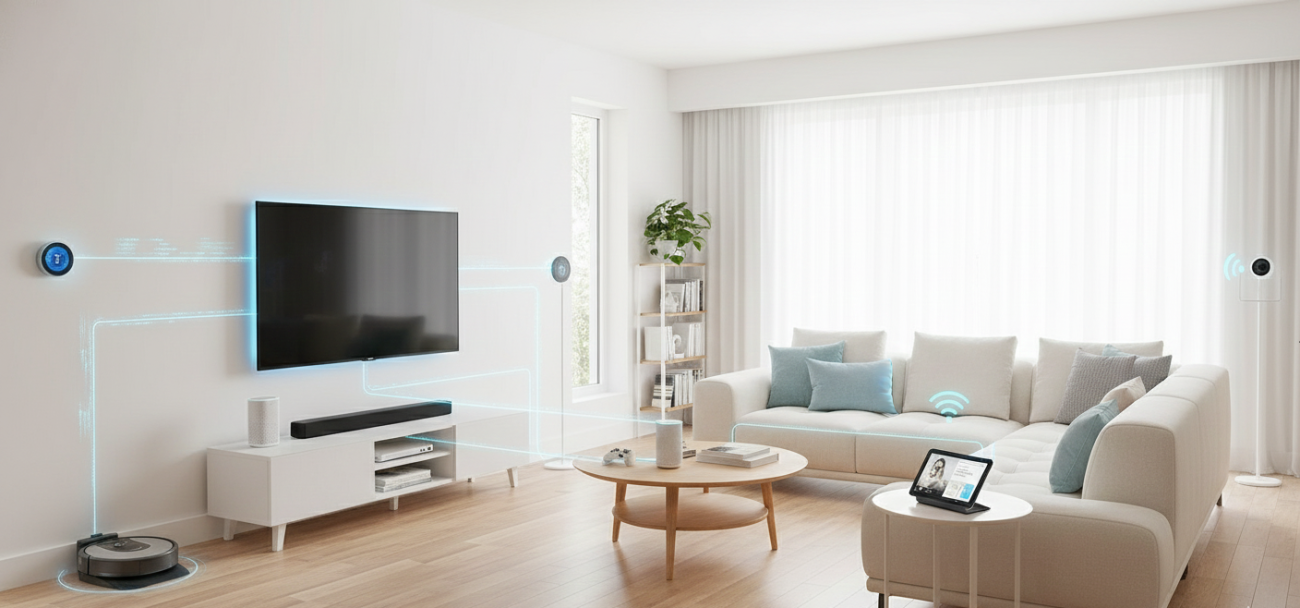
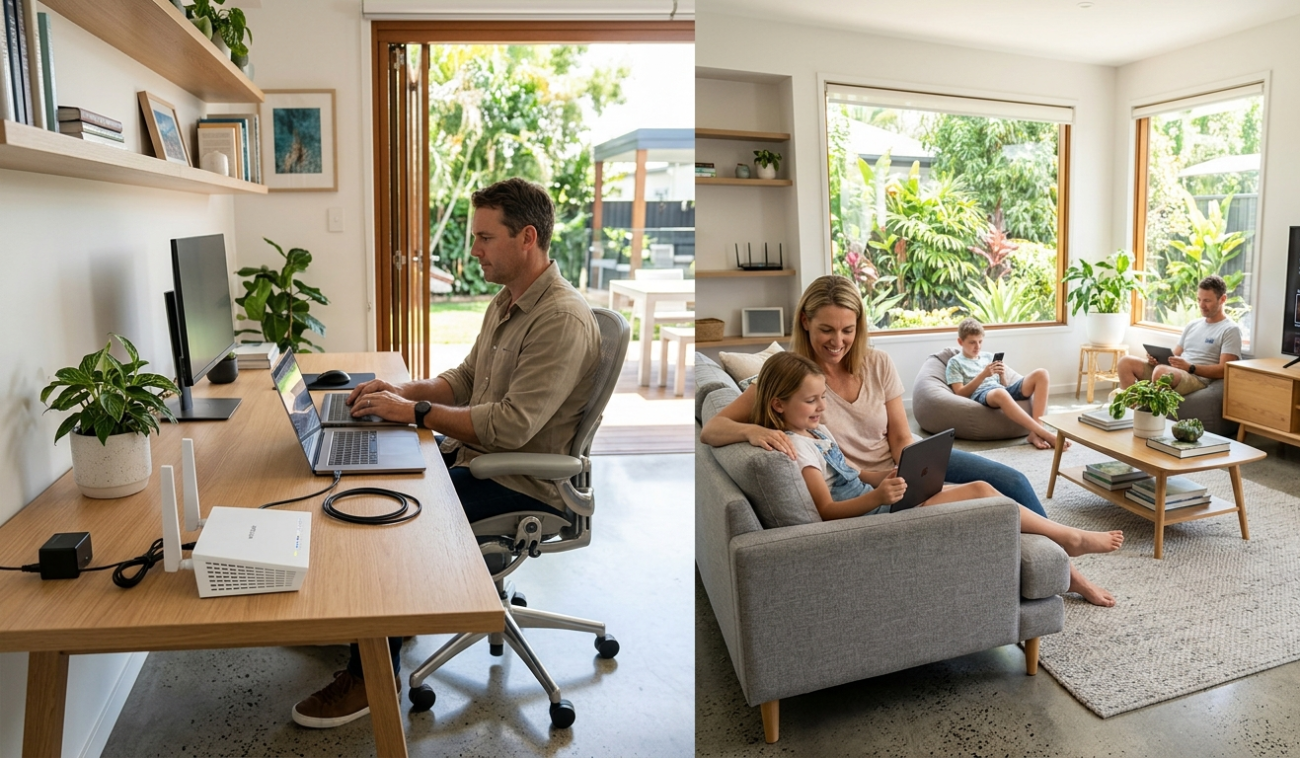
Modern households have more connected devices than most routers were designed to handle simultaneously. When your TV keeps buffering during peak household hours, an overloaded router is often the cause.
What to do:
- Check how many devices are actively connected to your network during the times buffering occurs
- Enable Quality of Service (QoS) settings in your router’s admin panel to prioritise streaming traffic over other household usage
- Schedule large downloads, software updates, and backups for overnight rather than during viewing hours
- Upgrade to a router with MU-MIMO technology that handles multiple simultaneous connections more efficiently
4. Smart TV App or Firmware Issues
Sometimes a TV keeps buffering not because of the network at all but because of the streaming app itself or outdated Smart TV firmware affecting how efficiently the TV manages its network connection.
What to do:
- Clear the cache of the affected streaming app through the TV’s settings menu
- Uninstall and reinstall the app if clearing the cache doesn’t help
- Check for a firmware update for your Smart TV under Settings, Support, Software Update
- Perform a factory reset if multiple apps are affected and firmware is already up to date
5. DNS or Router Configuration Issues
Slow or overloaded DNS servers can cause a TV keeps buffering situation that looks like an internet speed problem but isn’t. Your router uses DNS to translate website and streaming service addresses into IP addresses, and if the DNS server is slow or congested, it adds latency to every streaming request.
What to do:
- Log into your router’s admin panel and change the DNS server to a fast public alternative
- Google’s DNS (8.8.8.8 and 8.8.4.4) or Cloudflare’s DNS (1.1.1.1) are reliable free alternatives to your ISP’s default DNS
- Restart the router after making the change and test streaming performance
As covered in how DNS resolution affects internet performance, every connection your Smart TV makes to a streaming server begins with a DNS lookup, meaning slow DNS adds latency to every request before a single byte of video data is transferred.
6. Issues With the Streaming Service Itself
Occasionally, a TV keeps buffering because the problem is on the streaming service’s end rather than your home network. Server-side issues, regional congestion, or content delivery network problems can cause buffering that appears to be a local issue.
What to check:
- Test a different streaming service to confirm whether the buffering is app-specific or affects all services
- Check the streaming service’s social media channels or a status page for reported outages
- Try the same app on a different device, such as a phone or tablet, to confirm whether the issue is the TV or the service
If buffering only occurs on one specific app but other services stream fine, the issue is with that app or its servers rather than your network.
7. Using Wi-Fi When a Wired Connection Is Available
Wi-Fi is convenient but fundamentally less reliable than a wired Ethernet connection for streaming. If your TV keeps buffering and the television is near an Ethernet port or your router, switching to a wired connection is one of the most effective fixes available.
What to do:
- Connect the Smart TV directly to your router using an Ethernet cable
- If your TV doesn’t have an Ethernet port, a USB to Ethernet adapter provides a wired connection on most Smart TV platforms
- For televisions further from the router, a powerline adapter or MoCA adapter provides a wired connection through your home’s existing infrastructure
For a broader look at other Wi-Fi issues that affect Sunshine Coast households beyond buffering, common Wi-Fi problems and fixes covers the full range of network faults and what to do about them.
When a TV Keeps Buffering Needs Professional Help
Most buffering issues are resolvable with the steps above. But these are clear signs a professional assessment will deliver better results:
- Buffering persists on a wired connection at full NBN speeds
- Multiple devices experience buffering across the entire network
- Speed tests consistently show speeds well below your NBN plan entitlement
- Dead zones prevent adequate signal from reaching key areas of your home
- The problem appeared after a hardware change, NBN upgrade, or home renovation
For persistent connection issues that go beyond buffering, our internet repair service on the Sunshine Coast covers full diagnostics from the NBN connection point through to every device in your home.
For a professional Wi-Fi assessment and network upgrade, Wi-Fi repair and installation services covers everything from targeted fault diagnosis to complete mesh system installations across the Sunshine Coast.
According to ACMA’s guide to improving your home internet, factors such as Wi-Fi signal strength, router placement, connected devices, and home network configuration all play an important role in streaming performance. Optimising your home network can significantly reduce buffering and improve the reliability of Smart TVs and other connected devices.
Why Sunshine Coast Locals Trust Brocky’s Internet
We’re a local service, not a call centre. When you contact Brocky’s Internet, an experienced local technician talks to you directly, assesses your specific setup, and gives you honest advice about what your network actually needs.
Here’s what you get with every service at Brocky’s Internet:
- Experienced local technicians across all major router and modem brands
- Honest advice, we’ll tell you if a free settings change is all you need
- Fast response times across the Sunshine Coast
- Transparent, upfront pricing with no hidden costs
- A personal walkthrough so your household understands the fix
We’ll let the locals we’ve helped do the talking.
Stop Your TV From Buffering Today
Don’t put up with a TV keeps buffering situation that interrupts every viewing session. Whether it’s a quick settings change or a full network upgrade, the team at Brocky’s Internet is ready to help.
From fixing buffering issues to full Wi-Fi installation and internet repair across the Sunshine Coast, you can find everything we do at Brocky’s Internet.
Contact Brocky’s Internet today and we’ll have your network assessed and your streaming running smoothly as soon as possible.
FAQs
1. Why does my Smart TV keep buffering even with fast internet?
Fast internet at the modem doesn’t guarantee fast speeds at the TV. Weak Wi-Fi signal, router congestion, or an overloaded network between the router and the TV are the most common causes even when the NBN plan is fast.
2. Does buffering mean my internet is too slow?
Not necessarily. Buffering is often caused by weak Wi-Fi signal, too many devices competing for bandwidth, or Smart TV app issues rather than the internet plan itself.
3. Will a wired Ethernet connection stop my TV from buffering?
In most cases yes. A wired connection eliminates wireless interference, delivers consistent speeds, and significantly reduces buffering compared to Wi-Fi.
4. Why does my TV buffer more at night than during the day?
Evening hours are peak usage times on both home networks and NBN infrastructure. More household devices active simultaneously and higher network-wide demand both contribute to worse buffering performance during these hours.
5. Can clearing the app cache fix buffering on a Smart TV?
Yes, if the buffering is caused by corrupted app data. Clear the cache through the TV’s settings menu and test before assuming a network issue.