

A weak WiFi signal is one of those problems that starts as a minor inconvenience and quickly becomes a genuine daily frustration. Pages that take too long to load, video calls that drop at critical moments, streaming that buffers in the next room, and devices that seem to lose connection the moment you move away from the router. Improving WiFi signal at home isn’t complicated, but it does require addressing the right causes in the right order.
At Brocky’s Internet, we help Sunshine Coast households diagnose and fix weak WiFi signal regularly. Some fixes take five minutes. Others require a proper network upgrade. Here’s an honest, practical guide to what actually works and what doesn’t.
Why Your WiFi Signal Is Weak in the First Place
Before jumping into fixes, it’s worth understanding what’s actually limiting your signal. Improving WiFi signal starts with identifying the root cause rather than throwing solutions at a problem you haven’t properly diagnosed.
The most common causes of weak home WiFi signal on the Sunshine Coast:
- Router placed in a suboptimal location, too far from where devices are used most
- Building materials in Sunshine Coast homes, particularly concrete, brick, and double-glazed windows, absorbing and blocking signal
- An outdated router that simply can’t deliver adequate coverage for a modern home’s device load
- Wi-Fi channel congestion from neighbouring networks in higher-density suburban areas
- Too many devices competing for bandwidth on an undersized router
- Coastal humidity and salt air degrading older router hardware over time
Understanding which of these applies to your home determines which fix will actually make a difference.
Practical Ways to Improve WiFi Signal at Home
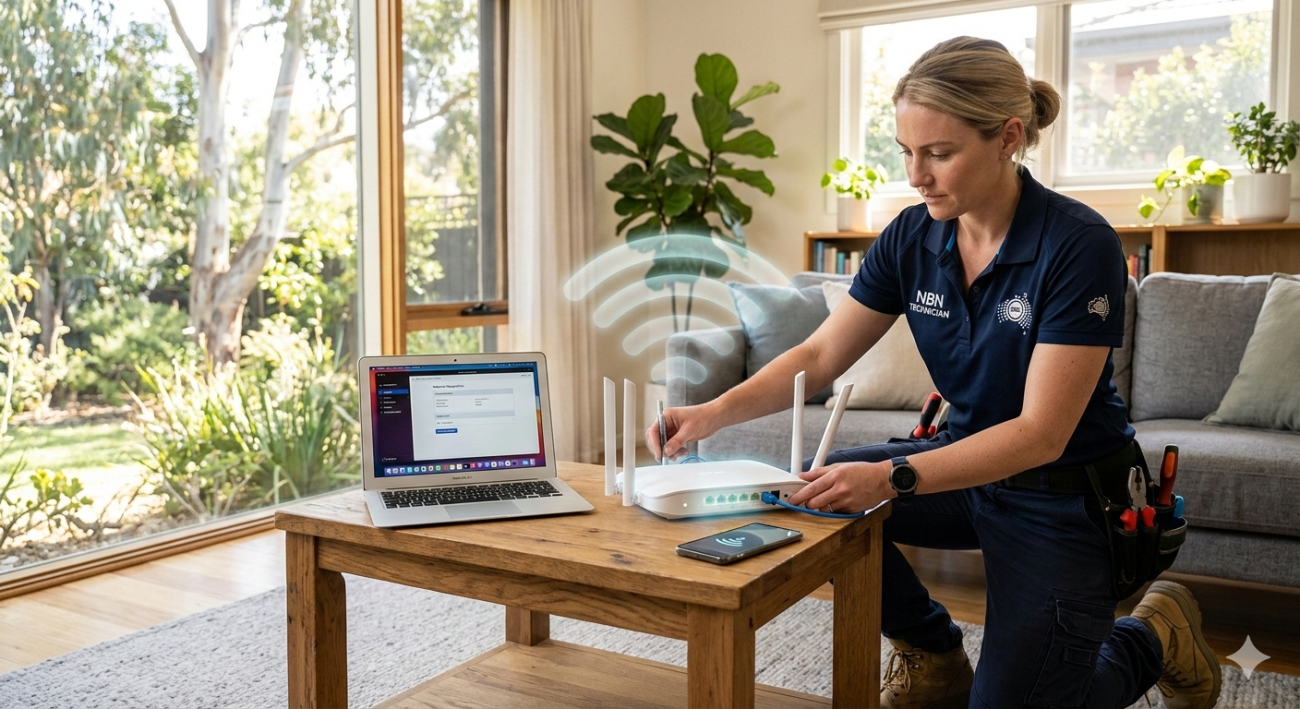
1. Reposition Your Router
This is the single most impactful and completely free step toward improving WiFi signal in most homes, and it’s the one most households haven’t done correctly.
What to do:
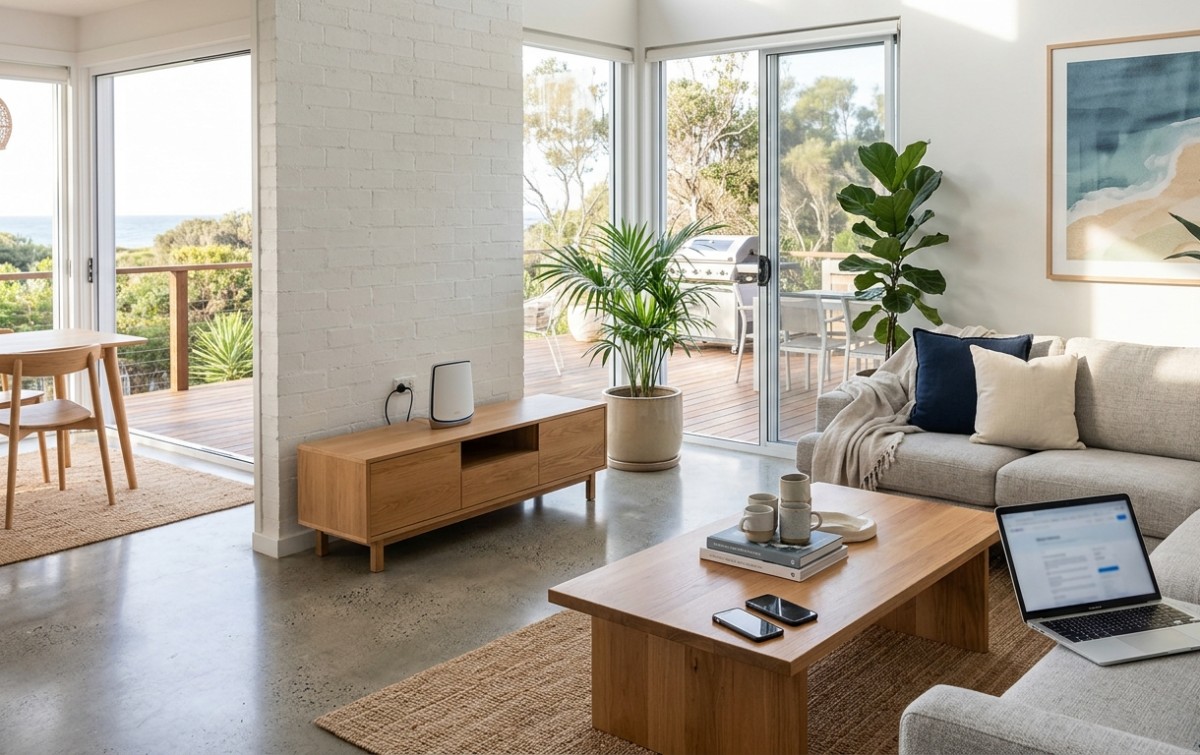
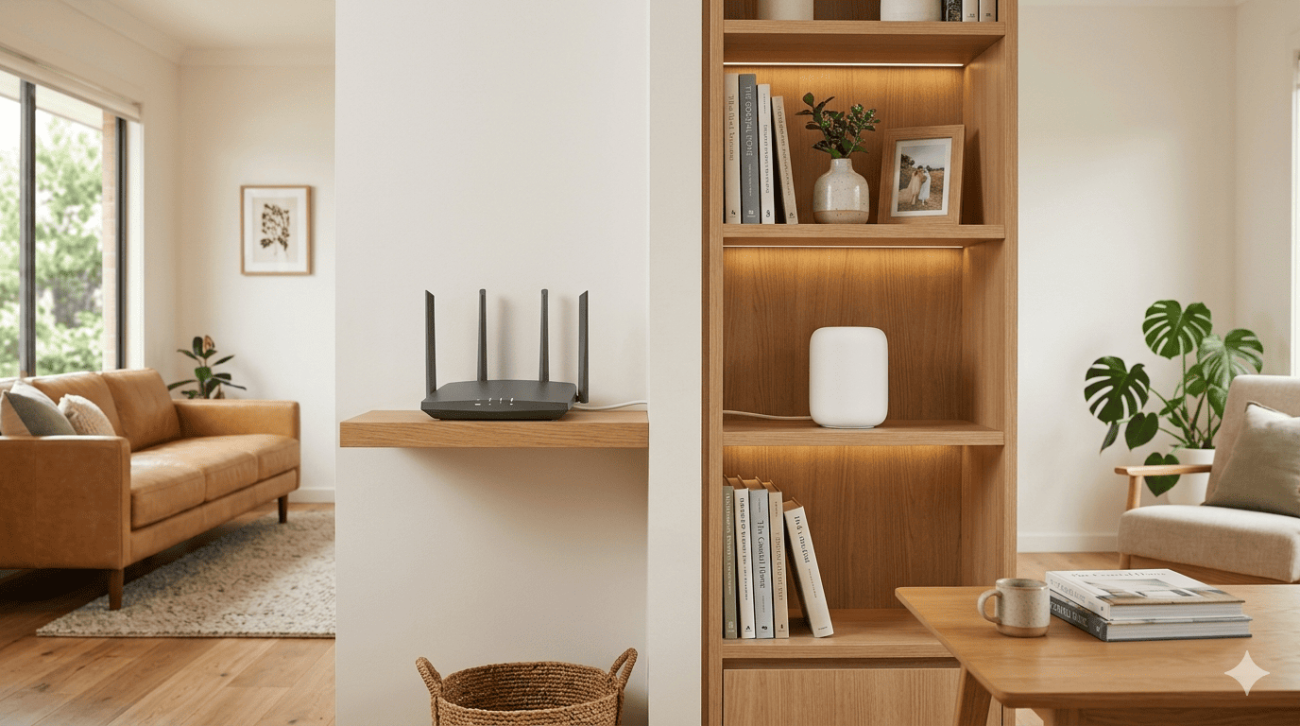
- Move the router to the most central location in your home rather than near the modem connection point at the wall
- Place the router at an elevated position, on a shelf or cabinet rather than on the floor
- Point external antennas vertically for horizontal coverage, or at angles for multi-storey coverage
- Keep the router away from microwaves, cordless phone bases, baby monitors, and other devices operating on the 2.4 GHz frequency
- Keep it away from large metal objects and thick concrete or brick walls where possible
A router repositioned from a back room to a central hallway can transform coverage across an entire home without spending a cent.
2. Switch to the Right WiFi Band
Most modern routers broadcast on both 2.4 GHz and 5 GHz frequencies simultaneously. Understanding which band to use on which device is a quick win for improving WiFi signal performance across your home.
What to know:
- 5 GHz delivers faster speeds but shorter range, ideal for devices close to the router like smart TVs, gaming consoles, and streaming devices
- 2.4 GHz travels further and penetrates walls better, better for devices at the far end of the home or outdoors
- Connect high-demand devices to 5 GHz where possible and reserve 2.4 GHz for devices that need range over speed
If your router broadcasts a single combined network name (SSID), consider separating the bands into two distinct networks so you can control which devices connect to which band.
3. Change Your WiFi Channel
WiFi congestion from neighbouring networks is a significant but often overlooked cause of poor signal performance, particularly in Sunshine Coast suburbs with higher housing density. Multiple routers operating on the same channel compete for the same radio frequency, reducing effective throughput for all of them.
What to do:
- Log into your router’s admin panel and navigate to the wireless settings
- Use a free WiFi analyser app on your phone to identify which channels your neighbours are using
- Select a less congested channel, for 2.4 GHz, channels 1, 6, and 11 are the non-overlapping options
- For 5 GHz, there are significantly more non-overlapping channel options available
This change takes less than five minutes and can produce a noticeable improvement in both speed and reliability without any hardware changes.
4. Update Your Router Firmware
Manufacturers regularly release firmware updates that improve router performance, fix bugs, and address security vulnerabilities. An outdated router running old firmware is often performing significantly below its capability.
What to do:
- Log into your router’s admin panel and navigate to the firmware or software update section
- Check the manufacturer’s website for the latest firmware version for your specific model
- Install any available updates and restart the router

If your router is several years old and no longer receiving manufacturer firmware updates, this is a strong signal that the hardware itself needs replacing.
5. Upgrade to a Better Router or Mesh System
If you’ve repositioned the router, changed the channel, and updated the firmware without significant improvement, the hardware itself is likely the limiting factor. Improving WiFi signal beyond a certain point requires equipment that can actually deliver what your home needs.
What to look for in a replacement router:
- Wi-Fi 6 (802.11ax) support for faster speeds and better performance in device-heavy homes
- MU-MIMO technology for efficient handling of multiple simultaneous connections
- Quality of Service (QoS) settings to prioritise high-demand traffic
- Dual or tri-band support for separating device types across frequencies
For larger Sunshine Coast homes, multi-storey properties, or homes with thick internal walls, a mesh WiFi system is often a better solution than any single router. As covered in how mesh networking creates seamless whole-home coverage, mesh systems use multiple nodes that communicate with each other to eliminate dead zones rather than trying to extend a single router’s signal further than it’s designed to reach.
6. Use a Wired Connection for High-Demand Devices
Improving WiFi signal for devices that genuinely need a reliable, fast connection is sometimes best achieved by removing them from WiFi entirely. A wired Ethernet connection delivers lower latency, more consistent speeds, and zero wireless interference for devices that support it.
Where to use wired connections:
- Desktop computers and home office setups
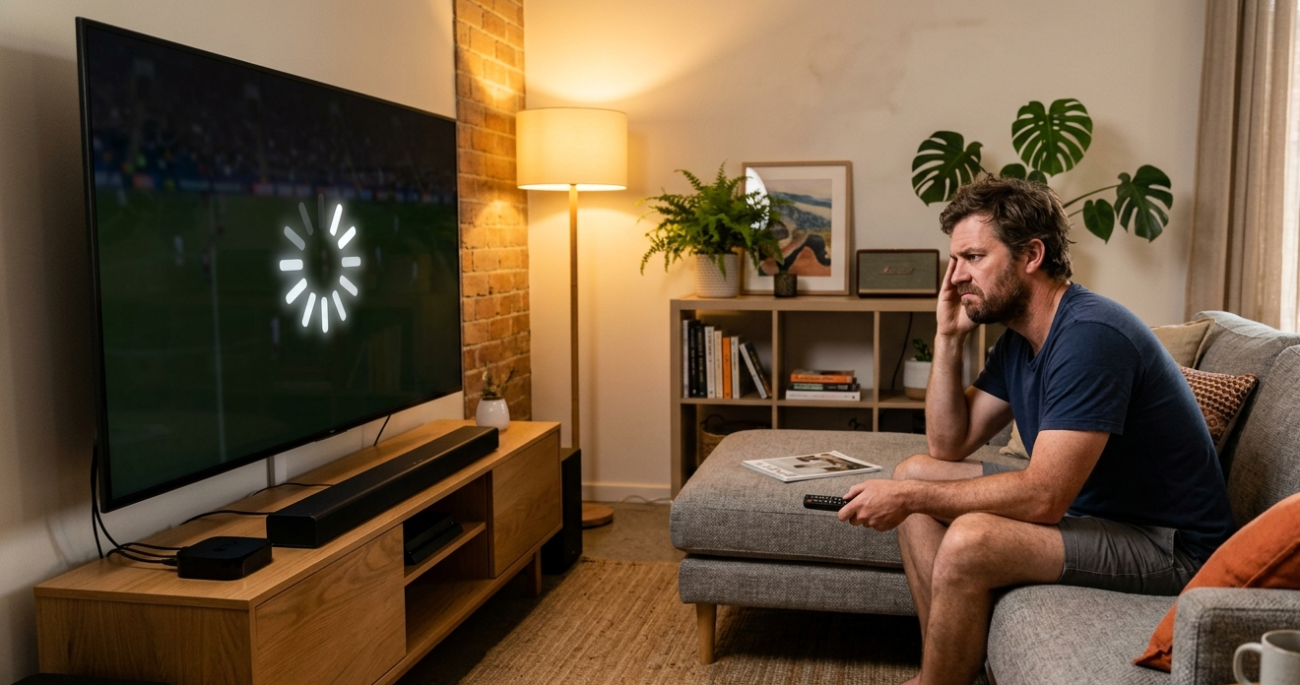
- Smart TVs and streaming devices where buffering is a persistent issue
- Gaming consoles where low latency matters for competitive play
- Network-attached storage (NAS) devices
Running Ethernet cables during a renovation or through walls isn’t always practical, but powerline adapters or MoCA adapters provide a reasonable wired alternative through your home’s existing infrastructure.
7. Reduce Interference From Other Devices
Wireless interference from household devices is a commonly overlooked cause of poor WiFi performance. Several everyday appliances operate on frequencies that overlap with your router’s broadcast range.
Devices that commonly cause interference:
- Microwave ovens during operation
- Cordless phones operating on 2.4 GHz
- Baby monitors
- Bluetooth devices in close proximity to the router
- Older wireless peripherals
Moving your router away from these devices, or switching to 5 GHz where possible, reduces their impact significantly.
For a specific explanation of why speeds and signal quality often drop during evening hours when the household is most active, why WiFi slows down at night covers the peak usage and congestion factors that affect Sunshine Coast households most.
When Improving WiFi Signal Needs Professional Help
Some signal issues go beyond what repositioning or a router upgrade can fix. These are clear signs a professional assessment will deliver better results than further DIY:
- Dead zones persist across multiple rooms despite router repositioning
- Speeds are consistently below what your NBN plan should deliver even on a wired connection
- Your home has multiple storeys or outbuildings that need coverage
- You’ve upgraded your router and still have the same problems
- You’re setting up a new home and want cabling and access points done properly from the start
For Sunshine Coast households in the Caloundra area, WiFi installation and repair in Caloundra covers professional network assessments and installation for homes that need more than a router reposition.
For a full professional WiFi assessment and upgrade across the wider Sunshine Coast, WiFi repair and installation services covers everything from targeted fault diagnosis to complete mesh system installations.
According to ACMA’s guide to improving your home internet, factors such as router placement, home layout, Wi-Fi interference, connected devices, and outdated equipment can all affect wireless performance. Optimising these areas often improves Wi-Fi coverage and reliability without needing a faster broadband plan.
Why Sunshine Coast Locals Trust Brocky’s Internet
We’re a local service, not a call centre. When you contact Brocky’s Internet, an experienced local technician assesses your home and existing setup honestly, then recommends the right solution for your specific situation rather than the most expensive one.
Here’s what you get with every service at Brocky’s Internet:
- Experienced local technicians across all major router and mesh system brands
- Honest advice, we’ll tell you if a free settings change is all you need
- Fast response times across the Sunshine Coast
- Professional installation with correct configuration from the start
- Transparent, upfront pricing with no hidden costs
We’ll let the locals we’ve helped do the talking.
Start Improving Your WiFi Signal Today
Don’t put up with a WiFi signal that lets your household down. Whether it’s a quick settings change or a full network upgrade, the team at Brocky’s Internet is ready to help.
From improving WiFi signal and mesh system installations to full network repairs across the Sunshine Coast, you can find everything we do at Brocky’s Internet.
Contact Brocky’s Internet today and we’ll have your home network assessed and performing at its best as soon as possible.
FAQs
1. What is the fastest way to improve WiFi signal at home?.
Repositioning your router to a central, elevated location is the fastest and most impactful free fix. Switching high-demand devices to the 5 GHz band and changing to a less congested WiFi channel are the next quickest wins.
2. Why is my WiFi signal weak in certain rooms?
Building materials like concrete, brick, and double-glazed windows block WiFi signal significantly. A mesh WiFi system or additional access point is the most effective solution for rooms a single router can’t reach reliably.
3. Does a WiFi extender help with improving WiFi signal?
A WiFi extender can help with minor coverage gaps but typically halves available bandwidth for devices connected through it. A mesh system delivers significantly better results for homes with multiple weak areas.
4. How do I know if my router needs replacing?
If your router is more than four to five years old, doesn’t support Wi-Fi 6, struggles to handle your household’s device load, or no longer receives firmware updates, replacement will deliver a noticeable improvement.
5. Can too many devices on my network slow down my WiFi signal?
Yes. Every device connected to your network competes for available bandwidth. A router with MU-MIMO support handles multiple simultaneous connections more efficiently than older hardware.





One thought on “Improving WiFi Signal at Home on the Sunshine Coast: What Actually Works”
Comments are closed.