
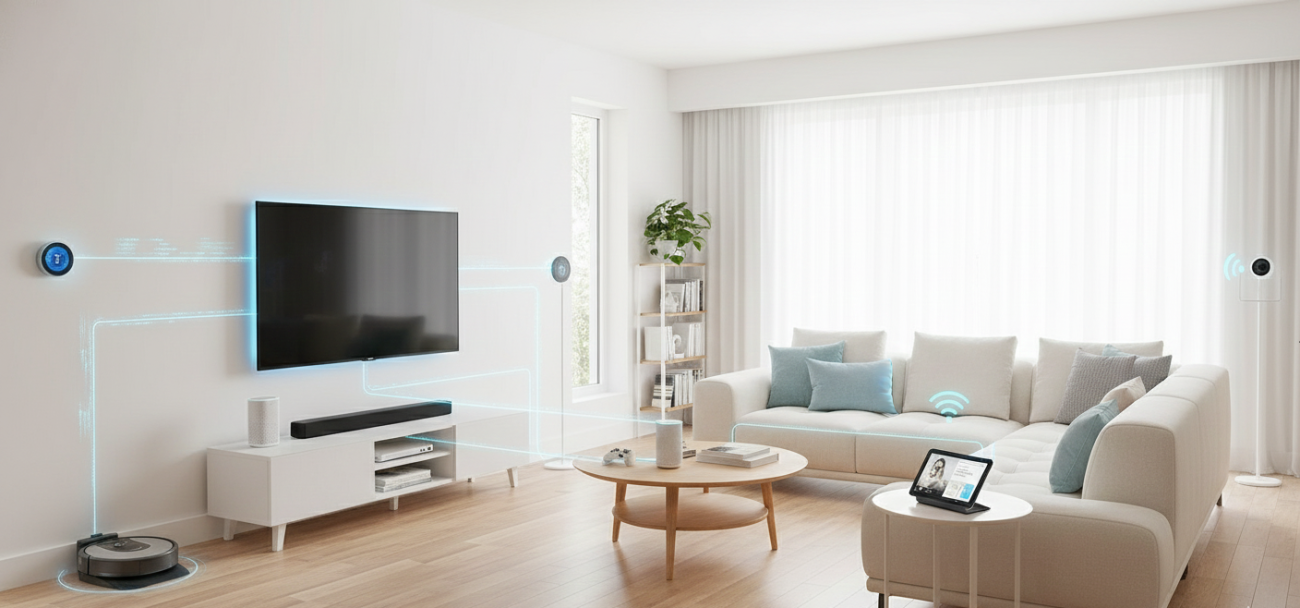
Most Sunshine Coast households have more devices connected to their home Wi-Fi than they realise phones, laptops, smart TVs, tablets, security cameras, and even appliances. That’s a lot of entry points for someone with bad intentions. The frustrating part? Most home Wi-Fi networks are left on default settings straight out of the box, which makes them surprisingly easy targets for hackers.
The good news is that securing your home Wi-Fi doesn’t require a degree in IT. With the right steps in the right order, you can lock down your network and protect every device connected to it. Here’s exactly what to do.
Why Home Wi-Fi Security Matters More Than Ever
Cybercrime in Australia is on the rise. According to the Australian Cyber Security Centre (ACSC), unsecured home Wi-Fi networks are one of the most common ways hackers gain access to personal data, banking credentials, and connected devices.
An unsecured home Wi-Fi network doesn’t just put your data at risk it can allow strangers to use your internet connection for illegal activity, leaving you liable. Taking a few minutes to properly secure your network is one of the most important things you can do as a homeowner.
How to Secure Your Home Wi-Fi Step by Step
1. Change Your Router’s Default Username and Password
Every router comes with a default admin username and password and hackers know what they are. Changing these immediately is the single most important step you can take.
What to do:
- Log into your router’s admin panel (usually via 192.168.0.1 or 192.168.1.1 in your browser)
- Navigate to the admin or security settings
- Change the default username and create a strong, unique password
- Use a mix of uppercase, lowercase, numbers, and symbols at least 12 characters
2. Update Your Wi-Fi Network Name (SSID)
Your network name (SSID) shouldn’t reveal your name, address, or router brand. Default names like “Netgear123” or “TPLink_Home” tell hackers exactly what hardware you’re using.
What to do:
- Change your SSID to something neutral that doesn’t identify you or your address
- Avoid names like “Smith Family Wi-Fi” or “Unit 4 Broadbeach”
- Consider hiding your SSID entirely so it doesn’t broadcast publicly
3. Use the Strongest Encryption Available
Encryption is what scrambles the data travelling across your home Wi-Fi network. Older encryption standards like WEP and WPA are outdated and easily cracked.
What to do:
- Log into your router settings and navigate to wireless security
- Select WPA3 if your router supports it it’s the current gold standard
- If WPA3 isn’t available, use WPA2-AES as a minimum
- Never use WEP or WPA these are no longer considered secure
As explained on Wikipedia’s Wi-Fi Protected Access page, WPA3 provides significantly stronger protection against brute-force attacks compared to older standards, making it the recommended choice for any modern home network.
4. Create a Separate Guest Network
If you regularly have visitors connecting to your home Wi-Fi, a guest network keeps them on a separate connection, away from your personal devices, smart home equipment, and sensitive data.
What to do:
- Enable the guest network feature in your router settings
- Give it a different name and password to your main network
- Disable access between the guest network and your main devices
- Turn it off when not in use
5. Keep Your Router Firmware Up to Date
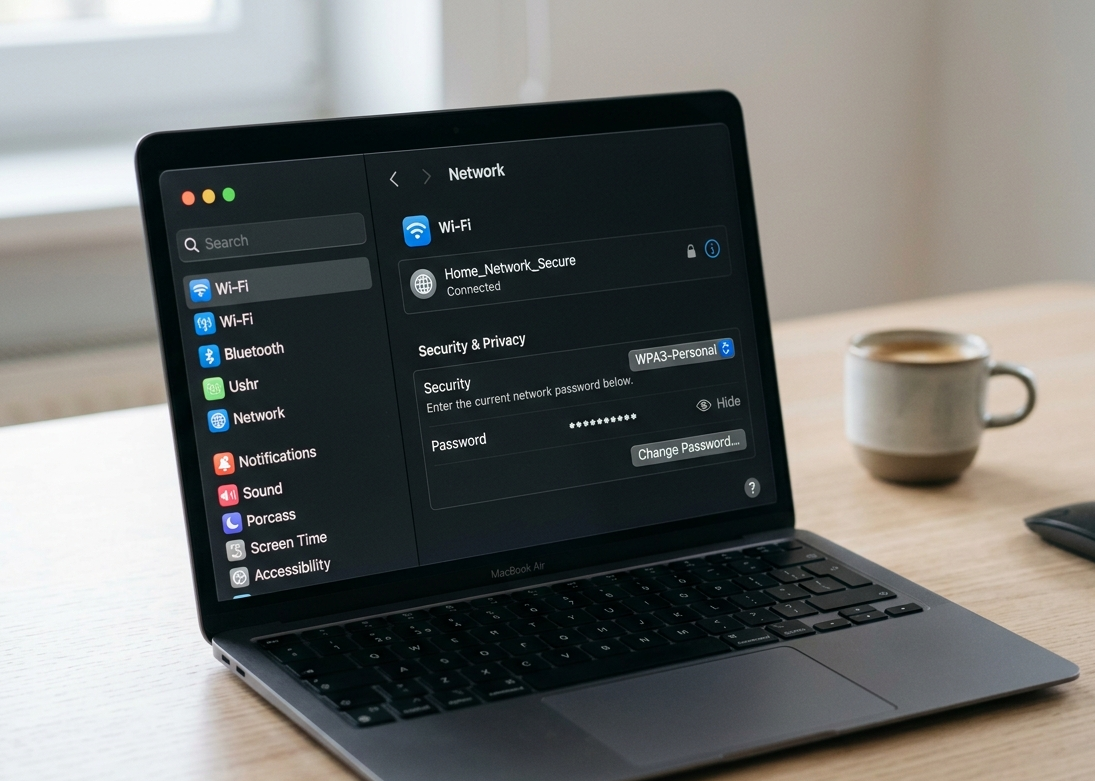
Router manufacturers regularly release firmware updates to patch security vulnerabilities. An outdated router is one of the easiest targets for a hacker.
What to do:
- Log into your router admin panel and check for firmware updates
- Enable automatic updates if your router supports it
- Check manually every few months if automatic updates aren’t available
- Consider replacing a router that no longer receives manufacturer updates
6. Disable Remote Management and WPS
Remote management allows your router to be accessed from outside your home network, useful for IT professionals, but a security risk for most households. WPS (Wi-Fi Protected Setup) is a convenience feature that has known vulnerabilities.
What to do:
- Disable remote management in your router’s admin settings
- Turn off WPS, it’s rarely needed and creates an unnecessary security gap
- Only re-enable these features if a qualified technician specifically requires it
7. Use a Strong, Unique Wi-Fi Password
Your Wi-Fi password is the main barrier between your network and the outside world. A weak password can be cracked in minutes using readily available tools.
What to do:
- Use a password of at least 16 characters
- Include a mix of uppercase, lowercase, numbers, and symbols
- Avoid common words, names, or dates
- Change your Wi-Fi password every 6 to 12 months, or immediately if you suspect a breach
When to Stop Troubleshooting and Call a Professional
Some home Wi-Fi security issues go beyond what a settings change can fix. These are clear signs your network needs professional attention rather than another DIY attempt:
- Your router is consistently slow despite all settings being correct
- You notice unknown devices connected to your network you can’t identify
- Your router is several years old and no longer receives firmware updates
- You’ve had a suspected breach or your internet provider has flagged unusual activity
- Your current hardware simply can’t support modern security standards like WPA3
If your issue extends beyond security settings alone, it may be time to look at your broader network setup. Our guide on why some Wi-Fi issues need professional help is worth reading before you go further.
For a fully secure and properly configured home Wi-Fi setup, our Wi-Fi repair and installation service covers everything from hardware upgrades to full network security configuration across the Sunshine Coast.
If your connection issues go deeper than your Wi-Fi, our internet repair service on the Sunshine Coast can diagnose and fix problems at every level, from the modem to the wall socket.
Why Sunshine Coast Locals Trust Brocky’s Internet
We’re a local service, not a call centre or overseas support line. When you reach out to Brocky’s Internet, an experienced local technician with real hands-on knowledge of home networks, routers, and Wi-Fi security talks to you directly, gives you an honest assessment, and helps you understand your options before any work begins.
Here’s what you get with every service at Brocky’s Internet:
- Experienced local technicians across all major router and modem brands
- Honest advice, we’ll tell you if a simple settings change is all you need
- Fast response times across the Sunshine Coast
- Transparent, upfront pricing with no hidden surprises
- A personal walkthrough so you actually understand your own network
We’ll let the locals we’ve helped do the talking.
Get Your Home Wi-Fi Secured Today
Don’t leave your home Wi-Fi vulnerable to hackers, freeloaders, or security breaches. Whether it’s a quick configuration fix or a full network security overhaul, the team at Brocky’s Internet is ready to help.
Contact Brocky’s Internet today and we’ll have your home Wi-Fi assessed and properly secured as soon as possible.
FAQs
1. How do I know if someone is using my home Wi-Fi without permission?
Log into your router’s admin panel and check the list of connected devices. Any device you don’t recognise could be an unauthorised user. Change your Wi-Fi password immediately if you spot anything suspicious.
2. What is the most secure Wi-Fi encryption for a home network?
WPA3 is the current gold standard for home Wi-Fi security. If your router doesn’t support WPA3, use WPA2-AES as a minimum. Avoid WEP and WPA, they’re outdated and easily cracked.
3. How often should I change my home Wi-Fi password?
Every 6 to 12 months is a good rule of thumb, or immediately if you’ve shared it with someone who no longer needs access, or if you suspect your network has been compromised.
4. Is hiding my Wi-Fi network name (SSID) enough to keep hackers out?
No. Hiding your SSID adds a small layer of obscurity but is not a security measure on its own. Strong encryption, a unique password, and updated firmware are far more important.
5. Does Brocky’s Internet offer home Wi-Fi security setup on the Sunshine Coast?
Yes. Brocky’s Internet provides full home Wi-Fi security configuration, router setup, and network installation across the Sunshine Coast, including encryption setup, firmware updates, and guest network configuration.


One thought on “How to Secure Your Home Wi-Fi From Hackers on the Sunshine Coast”
Comments are closed.